Showing posts with label simplyhdr. Show all posts

Sunday, March 11, 2012

Mud Bike...


Camera App: iPhone standard app in HDR mode
iPhone Model: 4S

Additional Apps used for processing:

ProHDR - to create an enhanced version of the already saved HDR picture made with the iPhone camera app. I did the ProHDR version from the two photos the iPhone camera app saved.
SimplyHDR - to enhance the HDR picture further.
Photo fx Ultra - for the filters Polarizer, Fog, X-Ray. I did a black&white X-Ray version, not a blue one.
Blender - to blend the different versions I created with Photo fx Ultra.
Camera Awesome - for the frame.
A+Signature - for the copyright watermark.

Spring is finally coming, with more and more days to ride my bike again - yeah! But sometimes it happens you start your day on dry roads, ride to the place you meet your friends, ride up to Ed's High Chapparal bar for a drink, and when you come out the door again you discover it had rained the time you was inside. Because it had rained only slightly we decided to continue our journey nevertheless, but on the way to the old town of Echternach the roads became really wet. I did not rain anymore, but the water spray from our own bikes as well as from the cars on the roads covered us up in mud. Because my feet had already been soaked I did not put on my rain clothes anymore. Having arrived at home with sunset, the mud dried quickly but the bike was still too hot to wash it so I decided to clean it today. But before I started cleaning I made some photos of the dirty gas tank with the Harley Davidson logo on it. Today was really a nice day. Did only a 77.6km ride but that one was really big fun, making me feel really good.

Wednesday, December 21, 2011

The Ruins of Montfaucon


Camera: Canon EOS40D with 17-85mm EF USM Kit Lens

Original RAW file developed with Canon Digital Photo Professional.

Apps used for post processing:
SimplyHDR-HD - for a HDR version.
ArtistaOil-HD - for an oil painting simulation.
Photo fx Ultra - for various effects and enhancements.
Blender - to blend a lot. I cannot remember how often I blend what version with what version. I just kept on playing around with it until my picture looked right to me.
TouchRetouch HD - for minor touchups
A+ Signature - for the copyright watermark.

May 4, 2008 I was visiting the region of Verdun in France together with two friends of mine, where one of the fiercest battles of the whole 20th century raged in World War 1. We planned to visit the US Military Cemetery of Romagne-sous-Montfaucon, but stopped on every occasion we found something that caught our interest. One of the places we stopped at was the ruins of the village of Montfaucon with the nearby monument erected for the U.S. troops that fought in this sector. The village of Montfaucon had been completely destroyed in the battle of Verdun. This picture shows the ruins of the church of Montfaucon, with the observation post build by the Germans. From this place. the German "Kronprinz" observed the battlefield.

There's a plaque attached to the observation post. It reads the following, original text (I did not do that translation):

HISTORY

THE RUINS WHICH YOU SEE HERE ARE WHAT WAS THE PARISH CHURCH OF THE VILLAGE OF MOUNTFAUCON (MOUNT FALCON) UNTIL 1914.

ON THIS PEAK, WHICH WAS 342 METERS (1.122 FEET) IN ELEVATION, MONTFAUCON WAS FOUNDED IN THE YEAR 587 BY THE MONK SAINT BALDERIC, GRANDSON OF CLOTAIRE, WHO ESTABLISHED A MONASTERY. TRADITION TELLS US THAT HE WAS GUIDED BY A FALCON, THE ORIGIN OF THE NAME OF THE VILLAGE.

BECAUSE OF ITS GEOGRAPHIC LOCATION, THIS VILLAGE HAS SUFFERED REPEATED INVASIONS AND WAS COMPLETELY DESTROYED MORE THAN TEN TIMES DURING THE COURSE OF HISTORY. HERE KIND EUDES LAUNCHED A GREAT BATTLE AGAINST THE NORMANS ON JUNE 24, 888.

ON 11. SEPTEMBER, 1914, THE VILLAGE, WHICH COMPRISED 900 INHABITANTS, WAS CAPTURED AND BURNED BY THE GERMAN ARMY. AS AN IMPORTANT STRATEGIC POINT, THE GERMAN ARMY ESTABLISHED 17 ARMED OBSERVATION POSTS (BLOCKHOUSES) IN THE RUINS. SOME OF THESE ARE STILL VISIBLE, NOTABLY THE ONE CALLED THE "OBSERVATOIRE DU KRONPRINZ" WHICH IS LOCATED AT THE CENTER OF THE OLD CHURCH.

DURING NEARLY FOUR YEARS FRENCH ARTILLERY SHELLED THE SITE WITHOUT RESULT OTHER THAN TO COMPLETE THE DESTRUCTION OF THE BUILDINGS.

ON 26 AND 27 SEPTEMBER, 1918, THROUGH THE COMBINED EFFORTS OF THE U.S. AND FRENCH ARMIES UNDER THE COMMAND OF GENERALS PERSHING AND GOURAND, A POWERFUL ATTACK PERMITTED THE U.S. 313TH REGIMENT OF THE 79TH INFANTRY DIVISION TO SEIZE THIS PEAK THIS NEW BATTLE OF MONTFAUCON PERMITTED THE ALLIES TO CLEAR THIS SECTOR OF THE FRONT AND TO MAKE AND ADVANCE OF MORE THAN 50 KILOMETERS (30 MILES).

TO COMMEMORATE THIS ACTION AND IN MEMORY OF MORE THAN 100,000 U.S. SOLDIERS WHO DIED OR WERE WOUNDED ON THE BATTLEFIELDS OF THE AREA, THE UNITED STATES OF AMERICA ERECTED THIS COLUMN OF GRANITE AS A TESTIMONIAL TO THEIR MANY SACRIFICES FOR FREEDOM.


~~~~~~~~~~~~~~~~~~~~~~~~~~~~~~~~~~~~~~~~~~~~~~~~~~

Monday, December 12, 2011

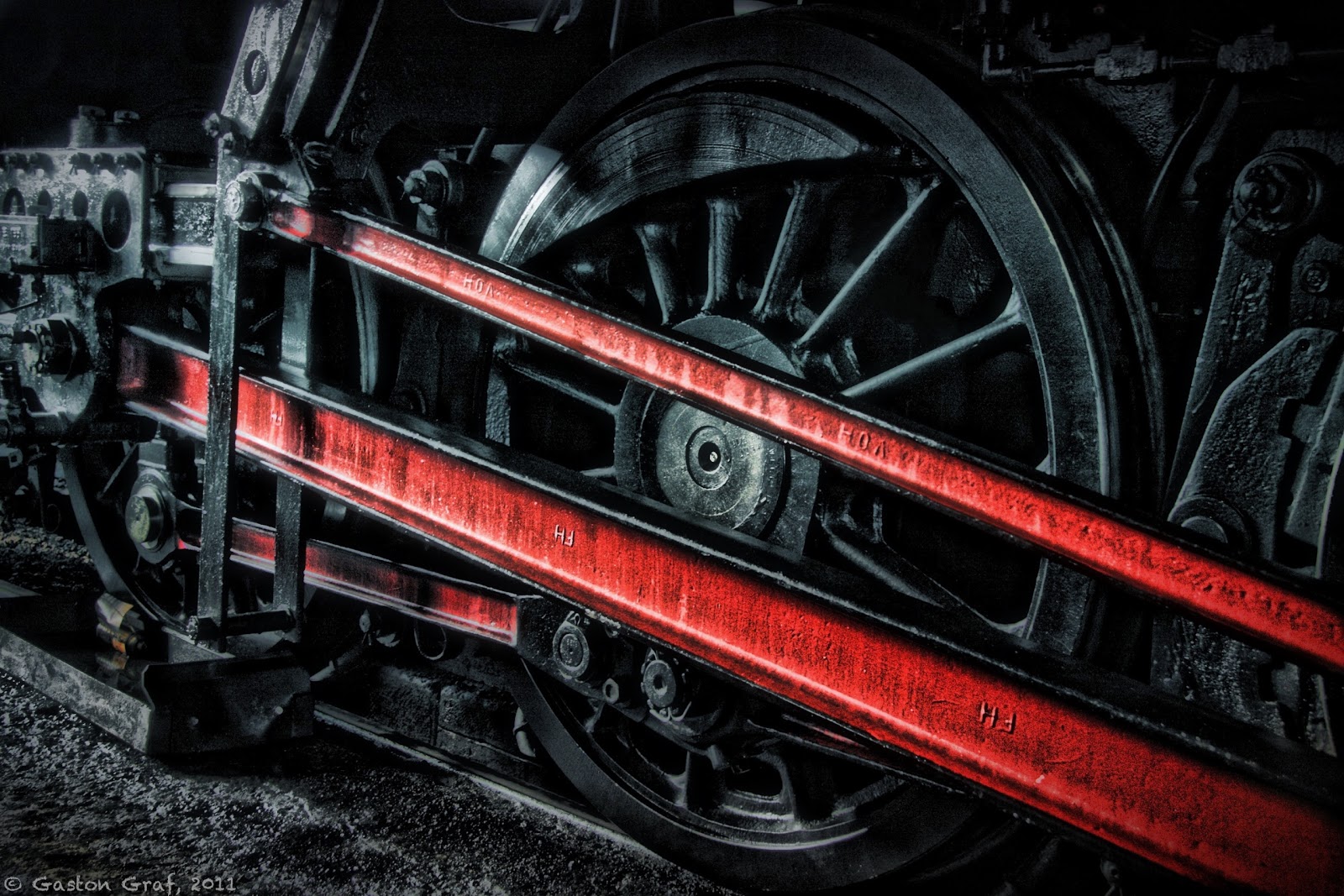
Black Wheel of Power


Camera: Canon EOS40D with 17-85mm EF USM kit lens.


RAW file developed in Canon Digital Photo Professional.
Photo processed on iPad2 with the following apps:
SimplyHDR-HD, Photo fx Ultra, Blender, FilterStorm Pro, Snapseed and TouchRetouch HD. Unfortunately I cannot provide details about every step I took to create this picture because I was playing around with a lot of apps but in the end I wasn't satisfied with the results so I went back to the beginning and restarted from HDR version made with SimplyHDR-HD. I used Photo Fx Ultra + Blender to work out the colors because I wanted to have a deep black wheel. I resized the picture in FilterStorm Pro, added some structure in Snapseed and removed some unwanted white spots with TouchRetouch HD.
A+Signature was used for the copyright watermark, as usual.


This is one of the big power wheels of steam engine 5519, photographed as the engine was in the shed. Railroad friends may find more information at the website of 5519. Unfortunately the website is in German only but you may find photos of the engine in action if you click on the word "Foto" in the top row of the page.

This picture is based on an analog photo I made a few years ago, in 2005 maybe. I happened to just return with the old switcher engine 910 which is visible in the background, as 5519 rumbled onto the turning table.


In World War II, as the Grand-Duchy of Luxembourg had been occupied by the Germans, the Reichsbahn ordered a set of 20 steam engines of the class 42 at the "Wiener Lokomotivfabrik Floridsdorf (WLF)" in Vienna in Austria but the engines couldn't be delivered to the Germans anymore as the war then ended. So the national railroad company SNCFL received these engines by the end of 1948, beginning of 1949, registering them as class 55. Engine # 5519 had been build in 1948 in Vienna Floridsdorf. It's "Fabriknummer" (serial no.) was 17615. Initially, the German Reichsbahn had planned to let it run unter the number 42 2718.
In service of the SNCFL this type was mainly used to haul coal and ore trains. It remained in service until the early 1960s as the costly steam engines got replaced by new class 3600 (electric) and the new classes 1600 and 1800 (diesel).
I still remember 5519 rotting away in the town park of Bettembourg, as I was a boy of 14. But 8 years later some railroad enthusiasts made an incredible effort to restore and save it. Now good old 5519 lives a new life again as a very popular tourist attraction, hauling tourist trains to Germany, France and Belgium.


Btw: if you're interested to have a ride then please contact the operators from their website. You may order tickets over the Internet.


This is the Instagram version of my picture. I really cannot say which version I like most, the original size, or the square size. Decide for yourself:


Questions? Send me an email to (quaffit(at)gmail.com) or leave me a comment ;o)!
Note: Please replace (at) with @ in my email address. This is a simple measure to prevent spam bots from harvesting addresses.


~~~~~~~~~~~~~~~~~~~~~~~~~~~~~~~~~~~~~~~~~~~~~~~~~~~~~~

Monday, November 28, 2011

The Beast in my Whiskey Bottle!


Camera App: Hipstamatic with Lucas AB2 lens, Blanko Film, Jolly Rainbo 2x flash (set to 1st position).

Additional Apps used for post processing:
SimplyHDR - for a HDR version of the Hipstamatic photo. That version came out darker than the original photo was.
ProHDR - to make a HDR version from the darker SimplyHDR result + the lighter original photo. Looked really great!
PhotoWizard - this cool app had been mainly used to create this picture. First I applied the FX effect Symmetry X-Axis, then Whirl (slider full right), then X-Axis again. As I turned my iPhone by 180° I looked into the throat of a flaming beast, ready to swallow me - huh. I then turned the picture by 180° in PhotoWizard and saved it. Did some color and contrast adjustments and imported the previously saved picture as a second layer which I blend in Overlay mode. I must say that PhotoWizard offers the same blending options than my beloved Blender app does so if you own already PhotoWizard, Blender isn't necessary.
PhotoWizard - to apply Pattern Border #4. I then discovered some white spots in the black irregular border which had been remains of the white photo border and which I disliked.
Squaready - to crop the picture off the original white Blanko film frame. Saved the result as a 2048x2048 PNG file.
FilterStorm4 - to add a 27% black frame to replace the previous white frame. The reason why I prefer FilterStorm for this operation is that FilterStorm really adds a frame to the edge of a picture. It does not overlay the edge, like most apps do.
PhotoWizard again - now I could apply Pattern Border #4 and I really liked the result.
TouchRetouch - for minor touchups. I removed some white spots from the nose of the beast, which had been remains of light reflections on the liquid to make it look more like a nose.
A+Signature - for the usual copyright watermark.

Yesterday afternoon, the weather being foggy, wet and dirty, I enjoyed a gulp of Jack Daniels Old No.7 Whiskey, which is my preferred brand. Oh yes I know, Whiskey experts will now protest and say the only real good Whiskey is being distilled in Scotland and Ireland, but frankly, it's a matter of taste and albeit I do also love very old Whiskeys made in Scotland and Ireland I love the rather rough taste of good old Jack Daniels Tennessee Whiskey even more. Jack Daniels belongs to Harley riders like the milk belongs to the cow, doesn't it?
Already the beautiful amber color of the tasty liquid is fascinating to look at so I came to the idea to play around a bit with my now almost half empty bottle of  Old No.7 and the iPhone. I made some shots through the bottleneck down to the liquid with the Hipstamatic and I loved the photos. The first ones had been a bit pale so I tried the first notch of the Jolly Rainbo 2x flash which nicely enhanced contrast and colors. I also made some QuickPix shots from the exterior of the bottle, and then I started playing around with apps like TinyPlanets and iDroste, but iDroste kept on crashing all the time when I was applying it's effect so I guess it doesn't like Tennessee Whiskey too much and I continued playing with TinyPlanets and TinyTube, but I didn't like the results too much either.
I finally had big fun trying the various effects included in PhotoWizardSymmetry and Whirl are really cool! After using them I looked into a tunnel (on my picture) and I wondered what else I can do with it until I turned my iPhone upside down and suddenly I gazed into the open mouth of a flaming beast with additional fangs waiting down in it's throat to swallow my poor soul and rip it into pieces.... Holy Cow! Yes there's a beast in every bottle of Whiskey, so beware! If you empty the bottle to make it disappear from it, you'll have it swallowed and then it takes control of you... and... ya know... so... just to give you a warning:

DON'T SWALLOW BOTTLE BEASTS AND DRIVE !!!

Btw: I wrote this blog entry 100% sober and my now about half empty bottle of that good stuff distilled in Lynchburg, TN had not been emptied that much as I made the pictures - I swear! 

Sunday, November 20, 2011

The Beauty of Destruction, part 7 - Old No.3


Camera App: BracketMode

Additional Apps used for processing:
ProHDR - to create a HDR picture from the shots made with BracketMode. Hower, I later discovered the HDR picture being partially unsharp which was the result of too much movement as I made the photos with BracketMode. So I decided to redo my picture, this time using only the darker photo of the set made because it was sharp all over.
SimplyHDR - to enhance the HDR picture created with ProHDR. If you want to create an HDR picture with an app that works with a set of photos make sure you don't saturate too much or your picture will look extremely over-saturated if you load it in yet another HDR app that works with single pictures, such as SimplyHDR. I was already much satisfied with the first result SimplyHDR came up with after loading my picture so I accept it the way it was and saved it.
Grungetastic - to experiment with because my the HDR version looked too boring to me. Testing various settings I finally stuck with Gritty 2 which I adapted to my likes. I pulled almost all sliders back to the left for zero effect except but for the tone slider which I left in its position. But Grunge 1, Grunge 2 and Papers had been set to full left and Borders had been set to No Border.
Blender - to blend my HDR with the Grunge version in Overlay mode, 50/50. Nice result, saved it.
PhotoForge - to create a version with High Pass filter because I wanted to add a little more sharpness. Sharpness could also have been added in Grungetastic but I haven't tested that feature yet.
Blender again - to sharpen my picture by blending it with the High Pass version in Overlay mode, 50/50 settings. Usually 50/50 looks right. To my taste more than 50% is overdoing the effect a bit.
After saving that result I was loading it again in Blender together with the HDR version before applying the Grunge effect because the picture looked a bit too greenish to me. I reduced that effect by setting the slider to 27% only, HDR loaded on the left side, greenish version loaded on the right side. Now I only needed a frame.
Grungetastic - I loaded my picture again in Grungetastic because I wanted a particular frame that I liked. Again I applied the Gritty 2 effect, pulling this time ALL of the sliders to the left, including the Tone slider, but for border I was choosing Border #13 (counted from left to right).
TouchRetouch - for minor touch-up. There had been a bright red little something laying underneath the wheel, disturbing the overall picture a bit so I removed it.
A+Signature - for the copyright watermark.

My latest picture from the "Beauty of Destruction" series shows wheel #3 of the now wrecked old electric locomotive #3609 of the National Railroad Company of Luxembourg, SNCFL. You can still see a number "3" pained in white on the wheel's glide bearing box. Attached to that box was also the speed gauge, a part that transformed the mechanical information received through the revolutions of the axle into electric tension to feed the Hasler-Bern speed indicator with in the cockpit. Also well visible are the wheel rim markings as broad yellow stripes (now bleached after long time weathering). The wheels on this type of engine had not been made in one piece but consisted of a wheel body and a rim that was shrunken onto the body in the workshops. For this purpose, the rim was heated up to a certain temperature because heating metal means the material will expand in its dimensions, hence the inner diameter got bigger and the wheel body could be inserted. Then the completed wheel was slowly cooled down, the rim shrunk again and got fixed in that way to the wheel's body. The reason for this type of railroad wheel simply was cost reduction because it was less expensive to replace a set of rims than replacing a complete axle with full body wheels. But like the advantage of this type of wheel was it to easily shrink a rim onto a wheel body, the disadvantage was that the rim could loosen again especially during a prolonged application of the brakes. Then the cast steel brake pads heated the rim up through friction. In the result the rim was loosening and turning on the wheel body. Under extreme conditions a wheel could be falling apart, with the certainly disastrous result of a heavy derailment of a train. To avoid this, the engineer had to check the markings on the wheel especially when preparing an engine for the day. The greatest railroad disaster as the result of a broken rim was the derailment and crash of the German high speed ICE 844 train "Wilhelm Conrad Röntgen" in 1998. The link goes to a video report on YouTube taken from a German TV documentation. I added this one because I couldn't find a suitable English report. But even if you don't understand German, the pictures show it all. In case of the ICE884 the train did not derail because a rim was overheating but because there had been fissures in it which had not been discovered due to technical inspections not being made.

Wednesday, November 16, 2011

The Beauty of Destruction, part 4


Camera App: BracketMode

Additional Apps used for post processing:
ProHDR - to create a HDR picture from the photos made with BracketMode.
SimplyHDR - to enhance that HDR picture further.
PhotoWizard - to create a nice Crayon version of the HDR picture.
Blender - to blend crayon with HDR 50/50 in Normal mode.
Pixlromantic - for the frame called Sand and a b/w effect called Tom. I saved both versions, color+Sand and Tom+Sand, then I blend both in Blender to reduce color saturation a bit.
PhotoForge2 - for a High Pass effect.
Blender - to blend High Pass with the Pixlromantic version 50/50 in Overlay mode to enhance sharpness.
FilterStorm3 - to apply a mask because I wanted more sharpness only on the molten and burned steel surface.
TouchRetouch - for some minor corrections. There had been a few drops of burned steel that appeared just as white spots in the background so I removed them.
A+Signature - for the copyright watermark

Old electric locomotive #3609 is laying in pieces, her body brutally ripped apart by the claws of a huge wrecking machine; her entrails cut apart by a cutting torch.... This had been a part of her braking system. The part in the background is one of the brake blocks, which had been made of cast steel.

In previous posts I described how to use a Pencil version of your picture made in Photo fx to blend it with the normal version in Blender to receive a nice outlining effect. I now discovered an even better solution because PhotoWizard includes a really beautiful Crayon filter that gives you a beautiful picture you can either use as it is or use it to blend it in Blender. But PhotoWizard has much more to offer than just that. Another app that I recommend because of its nice filters and frames is Pixlromantic.

Below is the Instagram version of this picture. Additionally to the effects described above I used the Sophia effect which gave the picture a blueish tint on the burned steel. Also I did not sharpen the burned steel surface but I did not apply one of the typical Instagram filters either cause I did not like any of them on this picture.


~~~~~~~~~~~~~~~~~~~~~~~~~~~~~~~~~~~~~~~~~~~~~~~~~~~~

Sunday, November 13, 2011

The Beauty of Destruction, part 2


From the ashes of old number 3608 reborn, the Scraponator rises to take revenge...

Do you see what I see? Do yo see the face in this picture? Yellow glowing slot eyes in a metal face? Or do you see a head on top in the middle, with two black teddy bear eyes, a round nose and a golden piece of jewelry on top of the nose... A face with an open mouth? Yes? No?

The above picture is the result of intense playing around with apps today. I photographed the remains of old electrical locomotive number 3608 today again to create another picture for my series about the Beauty of Destruction. I had been playing around a lot with Artista Haiku, Blender, SimplyHDR, Iris, PhotoWizard, FilterStorm, Snapseed, PhotoForge2, Camera+ and other apps and after I finally created a nice looking version of my picture I loaded it into PhotoWizard by curiosity to try other things. Here I used the Simmetry effect, and I had been very astonished about the results. Then I suddenly discovered when I turn my picture upside down it will look like an evil face of some sort of a machine monster. I wanted to add a nice looking frame and as I tried some frames from different apps I suddenly got aware of the presence of a head with a face in this picture. Do you see it? I DO!

The techniques applied in today's picture had been my basic techniques I almost use in every picture. Taking the photos with BracketMode, then creating a HDR picture in ProHDR.... enhancing that HDR picture in SimplyHDR... creating an ink drawing in ArtistaHaiku, blending in Blender again and again.... trying different settings until the whole thing looks the way I want it to look like. It was really big fun to play with my apps today. Sometimes creating an iPhoneography picture is a bit like riding my Harley - I start from somewhere, but I never know exactly where the road is leading me to. But the thrill about it is it to go finding out what's over the next hill...

Below is the final version of my picture after playing around with a bunch of apps but before application of the Simmetry effect. The frame that I added later was taken from the Steam Punk app SP PhotoTada.


Wednesday, November 2, 2011

Angels On My Wall...


Camera App: regular iPhone4 camera app with HDR switched on.


Additional Apps used for post processing:


Well, I've got to to confess that I did not keep records on the exact steps I took to make this picture of two metal cast angels hanging on our kitchen wall. But included was:


SimplyHDR - to create an enhanced HDR picture from the original HDR photo.
Artista Sketch - for a pencil drawing of that picture.
Blender - again one of my most important apps plaid a major role in this creation. I used it a lot to blend different versions of my picture until I was finally satisfied with the result.
Super Retro - for an effect called Middle Earth. This gave the photo a burned look with nice colors.
PhotoStudio - for a burned paper effect.
FilterStorm - for many steps... First one was to apply a radiant gradient filter, starting from the middle and going to the far right, as far as the left wing of the male angel goes. This gave a very nice effect. To do this I imported the version I saved before applying the burned paper effect to the layer with the burned paper effect I opened in FilterStorm. After applying the gradient filter I imported the version before the burned paper effect again. This time I applied a mask over the angels to cut them from the streaky gradient effect.
PicGrunger - for the Burlap texture.
SP PhotoTrade - for the beautiful Steam Punk frame and Journal texture. I must say I'm very happy about the will of the app developers to listen to us users because as the app came out it only supported low res savings. The argument of the developers was that processing on the iPhone would take too much time for high res pictures and they feared the main steam of customers wouldn't be willing to wait that long. Luckily I could convince them to include high res saving with a warning that this may take some time to process. But I wonder what they really understand as "high resolution" because still the picture wasn't saved in full iP4 resolution of 2592x1936. I was only 2300somethingXanything which I found out by checking the picture size with the neat little app called PhotoSize.
Iris - to resample the downsized picture back to 2592x1936 pixels. Although other apps may do the same job I still prefer Iris for this because there is no loss of quality. I recently did some pics for friends of mine who provided them in 640x480 and boosted the final version to 2592x1936 which looked brilliant then. So Iris is first choice for boosting resolution.
FilterStorm again - this time for erasing the Journal texture from the angels. To do this I first created two different versions in SP PhotoTrade, one with the frame an no texture, using the version before PicGrunger, and one with the frame+Journal texture using the PicGrunger version for it. I then imported one version to the other as a second exposure in FilterStorm to erase the Journal texture from the angels only. 
SnapSeed - to change white balance to a blueish look. The original angels have the look of oxidized bronze which I wanted to get back. The blueish tint was only the first step to achive this.
Blender - as I said I used it again and again to blend a lot. I don't remember the different steps in detail but I sure used it to blend the blue tinted version with the normal version.
FilterStorm - again I used it to erase the blueish angels from the brown tinted version so the angels stood out from the background. But I still wasn't satisfied because the angles looked too blue.
Blender - I was then blending the blueish angel version with the normal version again and I finally got want I was looking for.
A+Signature - for the copyright watermark...
After transferring my pictures to my laptop computer I saw on the big screen that it looked much too pale for my taste so I used Camera+ to enhance Vibrancy by 46%. 


I was big fun to make this picture. Hope anybody else likes it too. Below is the original photo I started from to make it. The angels are hanging on our kitchen wall. I photographed them using the iPhone camera app and the kitchen light only. No tripod either.


~~~~~~~~~~~~~~~~~~~~~~~~~~~~~~~~~~

Sunday, October 30, 2011

Rise of the Orchid!


Happy Halloween everybody!


 I created this picture based on a photo that I took with Quickpix of an Orchid that I placed on our kitchen table, under the kitchen light - nothing else. Apps that I used? Well it's Halloween so guess yourself how I did it! The photo that served for the base of this creation is displayed below. Just take a close look at the evil Orchid - do you see the tongue that is licking for you and the teeth waiting for a bite on you? Well... ;o).


~~~~~~~~~~~~~~~~~~~~~~~~~~~~~~~~~~~~~~~~~~~~~~~~~~~~~

Friday, October 28, 2011

Scrapped

Camera Apps:
BracketMode - for the photos that served as the base for the HDR picture.
Hipstamatic - for the b/w retro photo on the end of this page.
Additional Apps used:
iCameraHDR - for the HDR picture made from the the BracketMode photos.
SimplyHDR - to enhance the HDR effect and for fine tuning.
MonoPhix - to create a b/w version of the HDR. No color filter applied, shades set to 0.
Blender - to blend the color HDR with the b/w HDR to enhance colors and contrast. Blending mode was Overlay, slider set to 27% only. More would have darken the sky too much.
Camera+ - for the nice frame. I used the frame called Light Grid. There are other apps offering similar frames but I prefer the one provided by Camera+.
MergeEasy - to put the pictures of the different steps together in a strip so you can see the differences.
A+Signature - for my copyright watermark as well as the labels on the photo strip.
Old 3612 now awaits the cutting torch after being partially scrapped of usable parts. I'm not sure with this but it could be the parts scrapped from her served to restore 3608 to factory fresh condition. Currently 3608 is in the paint shop where she'll be repainted in her original green+gray colors from 1956. The above photo strip show the different steps I made until the final picture before the frame was added. The picture below shows the engine's number with the modern company logo CFL.
~~~~~~~~~~~~~~~~~~~~~~~~~~~~~~~~~~~~~~~~~~~~~~~~~~~~~~~~
~~~~~~~~~~~~~~~~~~~~~~~~~~~~~~~~~~~~~~~~~~~~~~~~~~~~~~~~

Sunday, October 23, 2011

Reading Greg's Diary


Camera App: QuickPix
Additional Apps used:
Squaready - to crop a 1:1 square picture from the original photo.
Perfectly Clear - to enhance the picture.
MonoPhix - to create a b/w layer. I love MonoPhix to create black and white pictures because it is very easy to use and it comes with color filters.
Blender - to blend the b/w layer with the color layer to reduce saturation. Blending mode was Normal, slider set to the middle 50/50. I did this in preparation for using SimplyHDR because HDR effects usually overdo it with saturation.
SimplyHDR - to create a HDR layer.
Blender - to blend the HDR layer with the normal color layer to reduce the HDR effect by 50%. That means both layers had been blend in Normal mode, slider set in the middle 50/50.
PicGrunger - to create a grunge version on Burlap, Strength set to 0, style chosen was Block Party.
PhotoSuite - to add nice photo frame.
A+Signature - to add my copyright watermark.
This afternoon I caught my youngest daughter Melina reading a book. It's German title is "Greg's Tagebuch" which translates as "Greg's Diary". It's a great reading for children and my daughter loves the whole series. We're a family of book worms anyway. We all enjoy reading books - real books, not the e-books. Although I also use Kindle on my iPhone to read novels sometimes I think that nothing compares to the real thing of holding a real book in one's hands for reading. Smelling the paper and the ink.... the sound of turning pages in a quiet room.... and the impatience to read on until the next page can be turned, the next chapter be closed.... nothing compares to that.
Melina hates to be photographed so I had to switch my iPhone to quiet mode and sneak up on her for shooting. Here QuickPix came in really handy. It allowed me to quickly snap up a whole lot of photos before Melina finally got aware of my presence, then yelling at me "get that damn camera away you crazy paparazzo freak!" (grin). Well, the unsharp Instaplus picture below shows you what I am talking about ;o).


~~~~~~~~~~~~~~~~~~~~~~~~~~~~~~~~~~~~~~


Friday, October 21, 2011

The Beauty of Decay, Part 3.


Camera Apps: 
BracketMode
Hipstamatic - for the b/w pictures in the photo slide. Lens: Melodie, Film: A0 DLX


Additional Apps used:
iCameraHDR - for the HDR pictures in color.

SimplyHDR - to create two different HDR pictures with darker and lighter settings
Blender - to blend those two HDRs into one with 50/50 slider setting in Normal mode which nicely enhanced the picture.
MonoPhix - for a b/w version of the HDR picture. I usually chose a green filter with low shadow darkening
Blender again - this picture did not need too much blending because it turned already out very nicely after processing it in iCameraHDR. I created a b/w version to blend with the color version to obtain better contrast and richer colors but it didn't need a high setting of the slider to enhance it. Less is sometimes more. 

Snapseed - for adding some slight Drama effect plus enhancing saturation slightly.

PicGrunger - for a nice Grunge version with Metal structure. Even with the effect slider set to zero the picture turns out darker after processing but like I wanted only the frame I was loading the grunge version and the original version in FilterStorm3 to erase the dark picture from the frame so the lighter version came trough.EasyMerge - to quickly create a photo slide with four Hipstamaticphotos of the old steam engine.
As usual I added my copyright watermark in A+Signature.


This is the last one of the rusted wheels pictures of the old steam engine 5621. I enjoyed a lot making it because the structures of the rust and the colors turned out nicely.

Sunday, October 9, 2011

Luxembourg City...


Camera: Canon EOS40D
Lens: 17-85mm EF USM Kit Lens

Apps used for processing (as far as I remember):

Squaready - my first step was it to cut a 1:1 piece out of my original photo so I used Squaready, which is a neat little app meant to prepare photos to use with Instagram and it's clones.
PerfectClr - to correct the heavily underexposed photo which had not been corrected in Canon's Digital Photo Professional before. I discovered PerfectClr by chance, after reading an article about the upcoming improvements of the iPhone's Camera App and Pictures App in iOS5. I downloaded it and I am very satisfied with the possibilities PerfectClr offers to enhance any photo. 
SimplyHDR - to create a HDR picture of my boring looking photo. I did two versions, one with the Smooth slider set to full left and one with it set to full right. HDR style used was Brown.
Blender - to blend the smooth picture with the detailed picture in Normal mode to reduce the effect by 50%. After saving that result I loaded it again in Blender together with the original color picture to blend it 50/50 in Normal mode again to give it back some color. The result looked already very nice but still too boring to me.
DynamicLight - to add a slight 25% effect of its beautiful Orton filter. I wanted a soft glow in my picture to the Orton is very useful for that. However one must be very careful with DynamicLight because the negative side effect of it's usually nice enhancements of a picture is the resulting grainy sky. 
PerfectlClr - I was loading my photo in PerfectlyClr again to lighten up the shadows. To do this I used the setting FixDark which is just perfect for serving that purpose. The resulting image was very clear in its shadows but the negative side effect was the sky which was now a bit too bright.
Blender again - to blend the brightened up picture with the previous darker one. At last I was happy with my picture. I now went on to try several apps and settings to enhance it further, among them being the Instagram apps like the original Instagram, Instaplus, Instacam and ClassicINSTA, but I wasn't much satisfied with the results so I tried qbro. The latter is really a nice app to create 1:1 size pictures and it comes with a bunch of very useful frames and filters. I created a version of my picture with the filter Burnt, which looked really great but what I disliked about it was the very heavy grain in the dark brown vignette.
Camera+ - finally gave me what I was looking for. I applied the Hipster filter with a 25% setting and used the Old-Timey border where I added the title of my picture to.
A+Signature - for the copyright watermark.

In my times before the iPhone I used to carry my DSLR around all the time. The old town of Luxembourg-City is a tourist magnet because of it's old architecture, the Palace of the Grand-Duke and the Cathedral Notre-Dame and I love to photograph the buildings too. I made the photo that served for creating this iPhoneography picture on a dull day in March 2008 from across the valley of the Petrusse but like I had no tripod with me and my DSLR equipment not being the best I end up with mostly underexposed photos. But I did not delete them again because I always think that even an underexposed photo may be useful some day. As I stumbled over the neat little app PerfectlyClr I used such an underexposed photo to test its capabilites. The result is what you see here as the main picture of my blog entry. Before I forget - below is the original photo that I made on March 8, 2008:


Wednesday, October 5, 2011

How to simulate a hand colored black and white photograph on the iPhone


Camera App: Hipstamatic with Lucas AB2 lens and with Ina's 1935 film

In my second "How to" I now want to show you how to simulate a hand colored black and white photograph like those popular before the invention of the color negative film. The idea came to me last Sunday as there was Father's Day here in Luxembourg. My daughter gave me a wonderful book about photography. It's German title is "In 1000 Bildern um die Welt - faszinierende Fotografien aus den Jahren 1850-1910" (translates as "In 1000 pictures around the world - fascinating photographs from the years 1850-1910"). Already the cover shows a beautifully hand colored photo from the past plus there are a lot more of them inside of the book. I noticed that some of those photos had been fully colored while others had only been partially colored. I don't know if this was a matter of costs but it sounds somewhat logical to me that it was less expensive to color only the main subjects in a photograph rather than the whole picture.

Last week I had been in Luxembourg City and a guard was finally to be seen at the Palace of the Grand-Duke again. I'm not sure about this but like the guards aren't always present the conclusion lies near they are only on duty when His Grand-Ducal Highness is actually in the building. So I made a few photos of the guy standing on guard.

My first step was it to create a color pseudo HDR picture in SimplyHDR. Settings: High Dynamic Range tap > HDR Grain 01.


Then I used DramaticB&W to create a pseudo HDR picture in b&w. Settings: DramaticB&W tap > Dramatic 1. I decided to choose Dramatic 1 preset because it nicely enhances the details in the picture. Even if this appeared to be a bit overdone at the first look it will be reduced later when applying a dreamy effect.


I used FilterStorm3 to apply a mask over the parts in the picture that I wanted to color. To do this I opened the color HDR first, then added the b&w HDR as a second exposure. I carefully painted a mask over the parts to be colored. It's a bit tricky but not impossible to do that on the tiny iPhone screen. But you need to be careful not to accidentally touch the [x]-button that cancels the operation or your whole work will be lost. It happened to me as I was already very close to finish the mask. Brush thickness is relative to zoom factor. This means the farer you zoom in, the finer the brush becomes even if you did not change its size which allows to paint a very precise mask. Painting the mask is a lot of switching between the hand tool (cross) to move the picture around, and the brush tool, as well as a lot of zooming in and out, so the danger is always present to accidentally hit the cancel button. If you're tapping too quickly on the place where your are painting the app takes this as a double tap and zooms out automatically which can be very annoying sometimes. 


Painting the mask

Clicking the finish mark processes the operation and the result is a dramatically detailed picture with parts of it in color. But this is still far from the old hand colored photographs that had been so popular before the invention of the color film as you can see on the result below:


After applying and processing the mask

At this point there had been still some flaws in the picture to be corrected. Please note the colored part of the sentry box base that is in the shadow of the sentry box. I colored it but that was wrong. Also the left edge of the sentry box looks way too saturated plus there is part of an unwanted object on the lower edge of the picture, in front of the guard's right foot and the original frame of the Hipstamatic Ina's 1935 film also doesn't look good anymore. Now how to correct this?

The easiest way to correct the color problems was it to load the picture again in FilterStorm3, adding the b&w HDR version as a second exposure, applying a mask to it - et voilà, the color had been removed.

The bigger problem was it to remove that unwanted object on the lower edge. For such purpose the app TouchRetouch is best choice. I opened the picture and applied a mask to the object I wanted to remove:

unmasked

masked

gone


After tapping the Remove tool (3rd from right) the object was gone, but then I faced a problem I found myself unable to correct. As you can see, the gap line between the tiles where the guard stands had also been interrupted. On a big screen using PhotoShop or any other software with a clone tool on board one can easily fix this, but on the tiny iPhone screen the menue bars always came in my way when I tapped the stamp tool. So I decided to leave this as it was and hoped it will later be hidden by a frame anyway.

Correcting the frame was easy. I cropped the picture from the old frame in FilterStorm3 and resized it back to 1936x1936px, then I opened it in PhotoForge2 to add a white frame (Frame 2).

My goal was it to find a way to reproduce the look of an old hand colored photograph as realistic as possible but at this stage my picture still looked far from what I wanted to achieve. So I loaded it into Romantic to create a dreamy effect. The setting used was Dreamy Photo > Dreamy Strong. I pulled the slider back to about 25% because the effect looked a bit overdone.

To give it an aged touch I opened that result in PicGrunger where I used the following settings: Style > Gig; Strength > 0; Border > none; Texture > original. The outcome of this looked great, but to my taste it was a bit too saturated. But that problem could easily be solved. I was loading the version that I saved before using PicGrunger plus the version after PicGrunger both into Blender and blend it in normal mode with 50% slider setting. The resulting image finally was what I wanted to get. As usual I added my copyright watermark in A+Signature.

It was big fun making this picture and I'm quite happy with the outcome of it but there may be better methods to simulate a hand colored old photograph so the search and experimenting goes on.