Showing posts with label blender. Show all posts

Sunday, March 10, 2013

On the road again!


Camera App: PureShot

Additional Apps used for post processing:
FrontView: to correct lens distortion.
SnapSeed: to work my photo into a retro style picture.
Blender:: to restore the original size of the picture. After correcting lens distortion I cropped the picture back to it's regular format in SnapSeed. After editing was done I loaded the original photo in Blender on the left side and the edited but cropped version on the right side. Then I pulled the slider to the full right in normal blend mode and I saved my picture. This is a great trick to restore the iPhone's native resolution even if an app doesn't save in maximal resolution or if you had to crop your picture, as in my case.
A+Signature: for the copyright watermark.

Finally, on February the 17th the roads had been dry again and the snow was gone. I felt so happy to ride again! Winter is the hardest time for every biker. All you can do is caressing your bike, doing maintenance and cleaning work while listening to cool Heavy Metal music in your garage, waiting for the white shit called snow to melt away. I HATE snow! Snow belongs to the North and South poles, to Greenland and Alaska, or to the mountains, but it doesn't belong onto roads which it makes dangerous to everybody's life.

________________________________________

Wednesday, August 29, 2012

Doing HDRs with the 645pro (beta)


Camera App: 645pro beta

Other Apps used for post processing:
Mobile HDR - to create a HDR picture from 3 files. Most iOS HDR apps use only 2 files, one overexposed and one underexposed. Mobile HDR aims at creating HDR pictures from your bracket shots made with a DSLR. Because the 645pro currently offers the best picture quality available on the iPhone I wanted to see if Mobile HDR can be useful for photos made with the iPhone too. The answer is YES it can! But to create the files necessary for the HDR picture one must use some tricks because the 645pro offers no bracket mode shooting. So I did the following:
1) I used the 645pro film with the richest colors, which is the FC5 film.
2) I used the Neutral Density #1 filter with 100% efficiency. Currently that filter is only available in the actual beta version of the 645pro but that version is to be released soon. It runs rock stable and comes with a lot of improvements. So if you don't already have the 645pro on your iPhone I recommend you buying it. It's definitely the best camera app available, and it's a pleasure to work with it. 
The 645pro saves your photos in TIFF format as well as in JPG formt. The TIFFs are the RAW files, unprocessed, no film effects, no filters. Development of RAW photos shot with a DSLR is usually done in a so called "RAW converter" but no such app exists for the iOS devices so development is done in the 645pro itself, that's why it's called a dRAW file - a developed RAW file. The JPG file (of the same photo) is the photo with the configured effects applied, such as films and filters used.
3) In case of the old Diesel engine (above) I also created a black and white version in MonoPhix HD as well as an overexposed version in Laminar.
4) To create the HDR picture in Mobile HDR I used the black and white version created in MonoPhix HD, the JPG version from 645pro and the overexposed version made in Laminar. To create the overexposed picture I simply adjusted its curve by pulling it a bit outwards on a spot set in the middle of the line.

Here you see the original photos and the finished HDR picture

Screenshot from Laminar showing the adjusted curve 
to create an overexposed photo.


The black and white picture created from the TIFF file
using MonoPhix HD.


After importing the files into Mobile HDR the processing
 screen looked like this.


Here's yet another HDR picture created in a similar way than the picture on top of the page. In this case I created an underexposed version of the TIFF file to use with the set of 3 photos in Mobile HDR. Then I created a black and white version from the HDR picture in MonoPhix HD. I also tried Snapseed but I liked the result from MonoPhix HD more. Then I was opening the color HDR and the b/w HDR in Blender. The color version on the left side - the b/w version on the right side. Blending mode was "normal", with the slider set 25% to the left. This enhanced the colors and de-saturated the picture a bit at the same time.

As usual, a copyright watermark was added in A+Signature.

If you got questions please feel free to ask. You may also find me on Facebook. Just search for "quaffii" or "Gaston Graf".
~~~~~~~~~~~~~~~~~~~~~~~~~~~~~~~~~~~~~~~~~~~~~~~~~~~~~~~~~~


Sunday, July 15, 2012

Tiny Aliens


Camera Apps: Hipstamatic, CCD,
Extras: Ollo Clip 3in1 Lens System, Macro Lens

Additional Apps used for post processing:
PhotoForge2 - for the usual High Pass versions needed for re-sharpening the photos.
PhotoWizard - for the Emboss effect needed to work out the structure in the main picture. I was blending the embossed version 4x with the previous version in Blender to get the structure effect that you can see in the main picture (top)
Photo fx Ultra - for various enhancements and cropping operations. but especially for the Day for Night effect.
Blender - for many blending operations.
ArtistaSketch HD - for clean sketches of the photos needed to blend in Blender to bring out details in the picture. Pencil sketches are very useful to enhance the outlining in pictures. I usually blend them in either Multiply mode or Overlay mode. You must play around with it and see for yourself what works for your picture. I cannot provide you a basic recipe here. What works for one picture does not necessarily work for another picture as well. That's the experience I made.
TouchRetouch HD - for touch-ups. Strangely there had been some ugly spots left on the drawings created with ArtistaSketch so I removed them before using the sketch version in Blender.
Laminar - for it's great light system used in the picture where the mother plant deploys an egg from one of the cocoons.
iPhoto - for local softening. I love iPhoto for it's "brushes" that can be used locally in pictures. If you want to apply an effect on the whole picture you can choose that option in the brush settings.
LensFlare HD - for the light effects in the blue pictures. Sadly, working with LensFlare is a pain in the ass because it has no undo function which is very annoying to me, but in the end I managed to obtain some useful results nevertheless.
Pixlromatic - for some of the frames.
A+Signature - for the copyright watermarks

Well.... two days ago I looked at one of my wife's flower pots purely by chance which let me discover a beautiful miniature "forest" of some strange little plant I never saw before. So I decided to photograph it. I made over 200 photos, but only few had been really useful. First I shot with the 645pro - the camera app that currently provides you the very best picture quality available on the iPhone. But the 645pro pissed me off once more because it ruined a countless number of really good shots as it crashed again and again. It might provide the best picture quality, but that's useless if the app is crashing that often. So I switched to CCD, which is the other app that saves dRAWs in TIFF format. It's a pure and rather simple camera app without all the fancy camera-simulator-wannabe-pro stuff that comes with the 645pro, but at least it works reliably. It never crashed.


The night scene of that little jungle of alien plants... I really love that miniature world in that flower pot! The night effect had been created with the "Day for Night" effect in Photo fx Ultra. The rays of light had been added with LensFlare HD. The frame was added in Pixlromatic.


Alien Mother deploys an egg from one of the cocoons... Donno what strange little plant that is but isn't it fascinating how it grows in sort of a miniature jungle and how it multiplies itself? Other plants use the wind to distribute their seeds in the world, or use even living animals to carry the seeds to a location far from the mother plant. But this little plant deploys the seeds from cocoons it carries underneath. I only discovered this as I did some shots with the macro lens of the Ollo Clip. Here the iPhone plaid out it's big advantage of being slim and small, compared to other cameras, because there was only little space left in the flower pot to put the camera down enough for shooting from the ant view low over ground. The light effects had been created with Laminar first, then with LensFlare HD.


Hipstamatic shot of the tiny jungle. Combo used was John S lens with Ina's 1982 film


Another Hipstamatic shot made with the Ollo Clip Macro Lens. Combo John S / Ina's 1982.


The original CCD photo used to create the main picture on this page. I cropped it to 1:1 format using Squaready.


The flower pot, where that tiny little alien plant grows... Photo made with CCD, cropped and framed with Pixlromatic.

I'm sorry for not being able to provide you in depth step-by-step instructions about the making of of the pictures on this page but I really plaid around a lot with many different apps until I obtained satisfying results. But don't hesitate to contact me in case you got questions. I'll be happy to assist you with anything you want to know.
~~~~~~~~~~~~~~~~~~~~~~~~~~~~~~~~~~~~~~~~~~~~~~~~~~

Monday, June 4, 2012

Geranium...After the Rain


Camera App: CCD
Extras: Ollo Clip 3in1 Lens System, Macro Lens
Nomad Brush: to paint on masks

Additional Apps used for postprocessing:
PhotoForge2 - for converting the original TIFF file into JPG format to process it in Blender because Blender cannot read TIFFs. Also I created a High Pass version of my photo to use it in Blender for the usual sharpening process.
Blender - to sharpen my photo a bit more using the High Pass technique. I usually create a High Pass version in PhotoForge2 where I apply a High Pass filter with a setting of something between 100-200. I save that version and blend it in Blender with the original photo in Overlay mode, original photo on the left side, High Pass version on the right side. Moving the slider quickly shows the change in sharpness and contrast. Settle where you like it the most and save the result. You don't need to save every step you took in Blender before adding another layer (version of your picture) to blend with the previous one. All you need to do is holding your finger on the screen until a menu appears where you can choose "flatten" from. Then your blended picture goes to the left side and the right side is free to add another version to it. Tapping your screen once brings up the menu to choose from editing or arranging of your layers. You may change your top layer's position and size, or in edit mode you may apply a mask. The pencil behaves in relation to the zoom factor. The more you zoom in, the smaller the pencil will be, hence the more detailed you can work with it. Strokes may also be erased again, indeed.
Photo fx Ultra - to use the Polarizer filter for enhancing the colors a bit.
ArtistaOil HD - to create an oil painting version
ArtistaSketch HD - to create a clean sketch version. I used a dark violet pencil this case
Blender - to blend oil and sketch and previous version again and again with different slider settings. Also I applied a mask in Blender to save sharpness in the center of the picture.
RippedHD - for the frame. I use my Nomad brush a lot when editing pictures. It's very handy for painting masks precisely or for defining the ripped off parts in a picture when using RippedHD.
A+Signature - still my favorite app to apply my copyright watermark.

Bad weather actually - too bad for riding my bike, so I used the occasion to play around a bit with my Ollo Clip macro lens once again. The flower looks big on the picture but in fact it's only a small part of a Geranium flower that I pictured with the Ollo Clip.
CCD is really a great app if you want to get maximum picture quality in RAW format without any effects applied to it. Most camera apps as well as the integrated software of modern compact cameras optimize your photo before it is being saved. that's why you get stunning results when using camera programs. Usually only DSRLs are also capable of saving your photo in a clean format, without any optimization, which is called the RAW format. You need a RAW converter, a special software usually provided by your DSLR manufacturer to convert your RAW files into a format usable in other software, such as JPG or TIFF. Currently there are two camera apps available in the app store that are capable of converting RAW data into a format usable for post processing. These are "645pro" and "CCD". While the 645pro simulates a well done camera with many settings plus some films and different picture format settings it's current version (1.11) unfortunately runs very unstable. If you take another photo before the previous one had been fully saved in TIFF format, which takes a little while, the app usually crashes and no picture will be saved. This is not the case with CCD. which is very quick and very reliable. You can take up to 4 pictures in sequence before the indicator turns red, but the files in memory are quickly saved so you don't need to worry too much about this. Other than 645pro, CCD saves only TIFF files, no JPG. In 645pro you can set your picture quality to save uncompressed JPGs + TIFF, which needs processing time. The 645pro generally is really an outstanding app which I only can recommend to buy. Currently it's only disadvantage is instability but I'm sure it's developers work already on this to correct it with a future update of the app. I especially love the black and white films of the 645pro. The great thing about RAW format saving is that the 645pro saves you a b/w JPG but also the RAW file in color.

Got a question? Please leave me a comment and I'll answer it. Or you may find me on Facebook. Just search for "quaffit".

~~~~~~~~~~~~~~~~~~~~~~~~~~~~~~~~~~~~~~

Thursday, May 3, 2012

Cleaning the Roof... (and other Macro photos made with the iPhone)


Camera App: 645 pro + Ollo Clip Macro Lens (for this picture as well as for all the other)

Additional Apps used (for the main picture):
Photo fx Ultra - for slight cropping.
iPhoto - for sharpening of the snail's eye.
Photo fx Ultra again - for manually re-drawing lines to add sharpness to the eye's outlines.
TouchRetouch HD - for some touchups
PhotoForge2 - for slight sharpening + a high pass effect which had been saved as a new picture.
Blender - to blend the high pass version with the previous version to enhance sharpness and contrast. Setting was 100%
ArtistaSketch - to create a pencil drawn sketch with nice outlines because outlining is important to improve sharpness as well as to add the drawing effect.
Blender again - to blend the previous version with the Artista version in Overlay mode, which made it a very nice drawing. Setting 50/50.
TouchRetouch HD again - because I discovered some more spots that I wanted to remove from the picture.
Blender again - to blend the last version with the ArtistaSketch version again, but this time I set the slider only to 20%. You gotta play around with the slider. Stop where you like the effect the most. Move back an forth to see the differences of the effect.
Camera+ - for the Vintage frame. I love the old paper frame for Macro photos!
A+Signature - for the hand signature.

Since the new 645pro App became available I became even more fascinated of macro photography because the image quality of this app is really outstanding, compared to other apps. The 645pro had been made for Pro's they say, or for ambitious hobby photographers. It's a bit more complicated to handle than simple point and click apps but it rewards its user with an image quality not matched by other apps. You can save your photos in lossless JPG (wich lets your files grow up to 12Mb) and you can save them in RAW format, or to be more correct, you can save them in dRAW TIFF format, which means "developed RAWs" are saved in lossless TIFF format. But the TIFFs are saved in a dedicated memory space which is only accessible via iTunes. If you want to process your TIFFs you gotta transfer them to your computer first, then re-transfer them to your iPhone or iPad for processing. This might be a bit annoying, but it's worth the effort.

Even after the latest update, working with the 645pro is very energy consuming so I highly recommend you to have an external battery pack at your disposal or you'll soon run out of power. I use a Mophie Juice pack with 2000mAh, but there are others available with even more power.

The Ollo Clip is one of the greatest accessories ever made for the iPhone. With an outstanding app like the 645pro this outstanding accessory becomes even better. I really enjoy doing macro photos with the 645pro + Ollo Clip. Here are some more examples of my latest pictures:

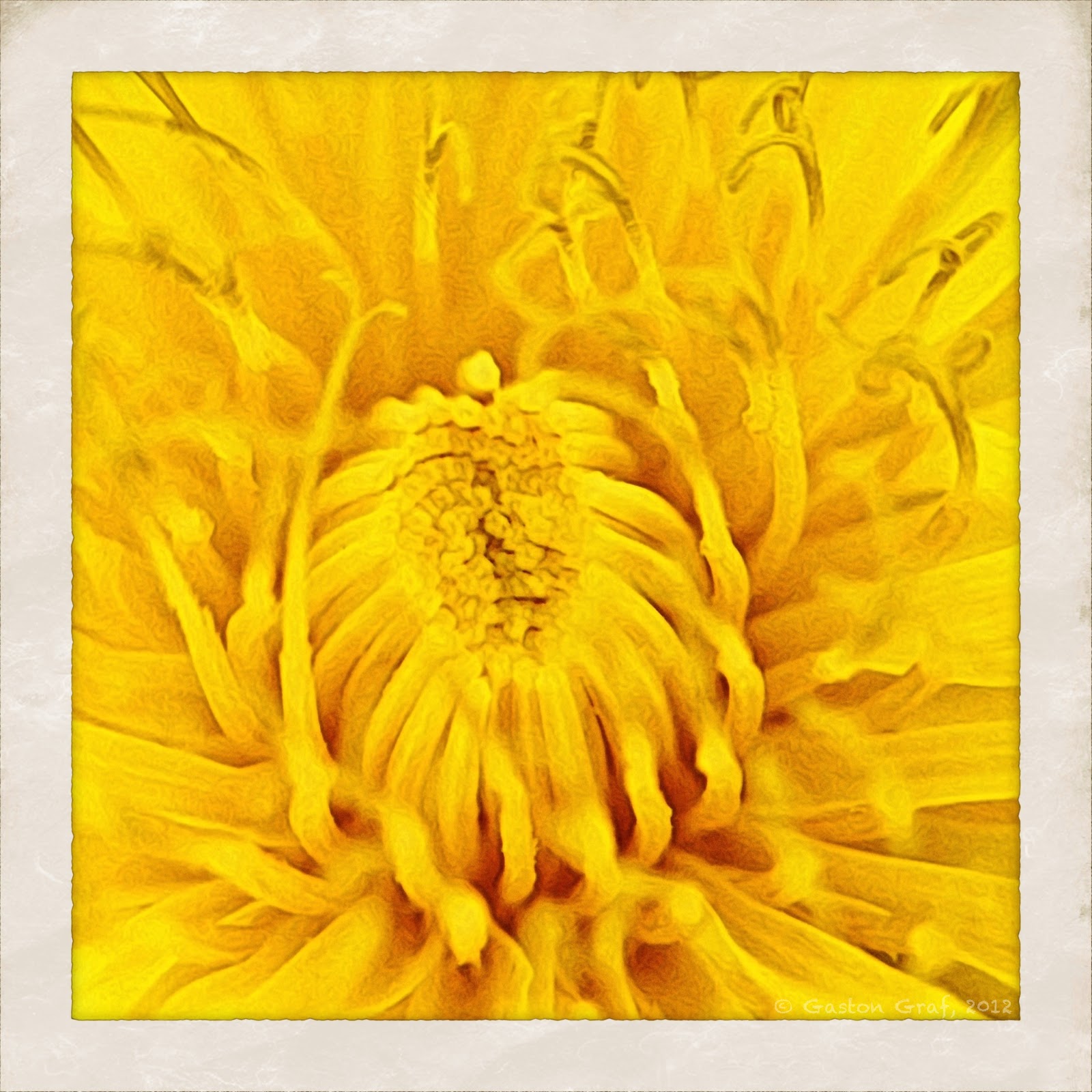
Dandelion, after the morning rain...


Honey Bee...


Grrrrr...


Diggin' for Gold?


Beware! (an angry little crab spider in defensive position)


Hey bro, did you eat my greenfly?


Tomatoe...


Zipper...


Old Sparky


The Instagram versions (1:1 square format) of my pictures can now be purchased from my gallery at Instacanv.as, printed on real canvas!

~~~~~~~~~~~~~~~~~~~~~~~~~~~~~~~~~~~~~~~~~~~~~~

Saturday, April 21, 2012

Alu-Chips!


Camera App: 645 pro

Additional Apps used for post processing:
Moku Hanga HD - for a Moku painting version
procreate + Nomad brush - to repaint parts of the picture because I wasn't fully satisfied with the outcome of the Moku painting. Procreate is really a brilliant app! I love it! Unfortunately it only supports up to 1920x1408 resolution and no 1:1 format but this isn't a problem. Just import your 1:1 basic photo and when you're done crop it back to 1:1 format in Squaready.
Squaready - for the cropping.
TouchRetouch HD - for some touchups.
Pixlromatic - for a special b/w effect.
Blender - I used Blender a lot to blend the b/w version with the color version quite a few times. The color version was a bit too brownish for my taste.
Camera+ - for the frame, which I cropped down to a smaller frame using Squaready.
A+Signature - for the usual copyright watermark.

In the former German Democratic Republic people used to refer to their coins as being "alu chips" because the 1, 5, 10, 50 Pfennig pieces as well as the 1 and 2 Mark pieces had been made of a lightweight alloy that sure contained a lot of aluminum. But not all coins had been made of that alloy. In my picture you can see a big 20 Mark coin as well as a reversed 5 Mark coin (Meißen) which had been made of a Nickel alloy. I still have a good hand full of GDR coins which are linked to some very special memories of mine because my beloved wife is from GDR. Back in 1985 GDR still existed. I lived there for 7 weeks after a long 5 1/2 month separation from her because the Commies didn't grant me a VISA anymore after she had filed in her official request to marry a foreigner (me). But luck was on our side and could marry the same year. December 24, 1985 I received the most wonderful Christmas gift of my life as my wife could leave GDR to move to Luxembourg where she arrived on December the 24th.

Sunday, April 8, 2012

Dandelion


Camera App: Hipstamatic with Ina's 1969 film + JamesM lens, flash off
iPhone Model: 4S
Accessories: Ollo Clip Macro Lens

Apps used for post processing:
Moku Hanga HD - this is JixpiPix' new app! It comes with the same good user interface known already the other apps made by JixiPix. I love this app! It offers a lot of new creative possibilities to every iPhonoegrapher.
Blender - one of my all time favorite apps. Like so many times before, I used this app a lot on this picture too.
Photo fx Ultra - to enhance the colors as well as to create a pencil version.
PhotoForge2 - for a High Pass Filter. I saved that version to blend it in Blender with the previous color version. This was done to enhance contrast and sharpness. Then I was blending that result with the pencil version I had created with Photo fx Ultra to bring out the Moku structure a little more.
TouchRetouchHD - for a minor correction. I removed a simple black spot from the picture.
Squaready - to crop off the original Hipstamatic border. I cropped it off so late because I wanted to keep it first, but then I found it didn't look good on that picture anymore.
Camera+ - for the Vintage border.
A+Signature - for the Copyright watermark.

Well, it's finally Spring time and with all the Easter Bunnies hopping around also the Dandelion is blooming. I love that plant! It's blossoms are beautiful and it's semen is a little masterpiece of Mother Nature when it ripens and flies off on tiny little "parachutes" to secure the continued existence of this wonderful plant. Also one can make a very tasty salad from its leaves and tea from it's roots. Dandelion is a very valuable herb used in medicine by Native Americans, Chinese and Europeans. If you're interested to learn more about the values of the Dandelion I suggest you following this very informative Link to a page of the Medical Center of the University of Maryland.
I had a lot of fun making this picture. Once the blossoms will be gone, this and many other Dandelion will sure end up in my salad bowl ;o).


The photo serving to create this picture was made of the lower one of the three blossoms.

Sunday, March 11, 2012

Mud Bike...


Camera App: iPhone standard app in HDR mode
iPhone Model: 4S

Additional Apps used for processing:

ProHDR - to create an enhanced version of the already saved HDR picture made with the iPhone camera app. I did the ProHDR version from the two photos the iPhone camera app saved.
SimplyHDR - to enhance the HDR picture further.
Photo fx Ultra - for the filters Polarizer, Fog, X-Ray. I did a black&white X-Ray version, not a blue one.
Blender - to blend the different versions I created with Photo fx Ultra.
Camera Awesome - for the frame.
A+Signature - for the copyright watermark.

Spring is finally coming, with more and more days to ride my bike again - yeah! But sometimes it happens you start your day on dry roads, ride to the place you meet your friends, ride up to Ed's High Chapparal bar for a drink, and when you come out the door again you discover it had rained the time you was inside. Because it had rained only slightly we decided to continue our journey nevertheless, but on the way to the old town of Echternach the roads became really wet. I did not rain anymore, but the water spray from our own bikes as well as from the cars on the roads covered us up in mud. Because my feet had already been soaked I did not put on my rain clothes anymore. Having arrived at home with sunset, the mud dried quickly but the bike was still too hot to wash it so I decided to clean it today. But before I started cleaning I made some photos of the dirty gas tank with the Harley Davidson logo on it. Today was really a nice day. Did only a 77.6km ride but that one was really big fun, making me feel really good.

Monday, February 20, 2012

At Last!


Camera: iPhone 4S
Camera App: Bracket Mode

Apps used for post processing:
Pro HDR - to create an HDR picture from the shots made with Bracket Mode
Photo fx Ultra - for most of the work. I don't remember all the steps I took to create this picture. I had been playing around with a bunch of apps, but in the end I found Photo fx Ultra provided me almost everything I needed.
FilterStorm Pro - to remove some noise in the sky as well as for some minor touch-ups using the clone tool.
Photo Toaster - for the frame.
A+Signature - for the copyright watermark.

After a long time of total abstinence I could finally ride again today - Yeah! The last time I danced with my big beautiful doll was on November 20, 2011, which means I had to wait for this moment exactly for three long months. What a pleasure to fire that baby up again, hearing the gnarling Big Twin again on low rpm, purring like a cat at 3000rpm, roaring like a beast beyond the 4000... But I rarely pushed it that far today. Weather was beautiful and sunny, but still it was cold, and still there are wet spots on the roads, especially where they pass in the shadow of buildings, hedges or the woods. Such places are to be passed with care because they can be slippery. Had no adherence problems though. I enjoyed a nice little 50 miles tour across country roads with a photo stop on the road between the villages of Schandel and Grosbous. How nice to hear the buzzards screaming in the air as I shot my photos, but even nicer was it to hear the cranes again! I heard them long before I saw them but then I spotted a huge flock of cranes flying north. They return, which means winter's on retreat, and I can ride again more often - Oh Yeah!

I did no photo shooting for weeks because the weather was so bad and today I wanted to finally play around with the Hipstamatic again but I got badly disappointed by it because it did not stop crashing after I shot only a few photos. So I dropped it to shoot my 1:1 format photos with the 6x6 camera app as well regular format photos with Bracket Mode. After I returned home I realized that the Hipstamatic hadn't finished the processing of my full film roll yet. It kept on crashing until I finally did a reboot of my iPhone. It's too sad - the more new updates with new lenses and films the Hipstamatic developer team releases, the more unstable the Hipstamatic becomes. I remember a time when I had much fun photographing with the Hipstamatic on my old iPhone 3GS. Less lenses, less films, rare crashes, but much fun!

At least I could make some photos with the new Hipsta pack Americana lens + US1776 film:


~~~~~~~~~~~~~~~~~~~~~~~~~~~~~~~~~~~~~~~~~~~~~~~~~~~~~~~~

Monday, January 16, 2012

Turn of an Era


Camera App: iPhone4S camera in HDR mode.

Apps used for post-processing:
Iris - for cropping
ProHDR - to enhance the original photo further.
Photo Toaster - for the X-Pro effect.
TonaloptiaHD - for a black&white version.
Blender - blending the b/w version with the color version in Overlay mode neatly enhanced colors and contrast. It's a basic procedure I use quite often to enhance photos.
Pixlromantic - this app comes with a great basic bundle of effects but if you want to have them all it becomes more expensive than the legendary Hipstamatic with all of its packages. However, Pixlromatic is absolutely worth the buy. I used it on this picture to give the clouds a more dramatic appearance by using the Bluegrad light filter.
FilterStorm Pro - to de-saturate the picture a bit as well as for adding a vignetting effect. I prefer FilterStorm Pro for vignetting because the effect is well adjustable. Photo Toaster comes with a collection of vignetting effects too but all effects are too intense for my taste. I prefer a subtle transition from edges to center.
Photo Toaster again - for the frame. On the other two photos I used Photo Toaster also for the scratches on the photo of the building entrance. The scratches on the second photo had been added using King Camera because I did not want the same scratches on two different photos. King Camera's advantage is it to allow a combination of up to 3 textures which can all be adjusted separately.
A+ Signature - for the usual copyright watermark.

The sadness continues.... times are changing at the old Railroad Yard in Luxembourg-City. The old buildings have to make room for the new workshops that are urgently needed for maintenance and repairs of modern trains and locomotives. The above picture shows one of the "devastators" feasting on the debris of Roundhouse #1. The building in the background (left) is doomed to be demolished too. The pictures below show the old office building where I reported for service since January 2nd, 1990. I intentionally applied the Cross Process effect on this set of photos because I love it. Although many photo apps come with X-Pro effects, not all are really usable (to me). But I love the effect as it is provided by Photo Toaster.
Tip: If you think an effect is too intense you can change the intensity in an app that supports blending in Normal mode, such as Blender, Iris, PhotoWizard or FilterStorm Pro. Just lay the picture version with the effect over the version without effect in Normal mode. You may then adjust its intensity by moving the slider. It's like making the effect layer more or less translucent, letting the original picture shine through.


~~~~~~~~~~~~~~~~~~~~~~~~~~~~~~~~~~~~~~~~~~~~~~~~

Saturday, January 7, 2012

Awaiting the End


Camera App: Hipstamatic + Lucas AB2 lens + DC film

Additional Apps used for post processing:
TonaloptiaHD - for toning the yellowish original photo down.
Ripped HD - for the ripped out effect.
Blender - to blend the ripped version with the original version in Overlay mode. Then I was blending the result again with the original photo, 50/50 in Normal mode. I did this blending to bring back art of the photo structure.
Pixlromantic - for the frame. There are now a whole lot of great in-app purchases available for Pixlromantic. With all the packages it's sure not one of the cheapest apps but it's worth the money, in my opinion, because it really provides a whole lot of great effects and frames.
FilterStorm Pro - to apply a mask for the yellow of the demolishing machine which is visible in the window because I wanted to give it back a touch of color as an eye catcher.
Perfectly Clear - to enhance the picture.
A+ Signature - for the copyright watermark.

One of the past days I visited the old building we call "Hotel Simon" at Luxembourg Railroad Yard, which is now being emptied. Surrounded by the debris of the previously demolished roundhouse, the demolishing machines are now waiting outside to take on their next victim, which will be this old building. I made this photo of a window at the locker room as the room was being emptied, workers taking out the remaining lockers behind my back. Some lockers hadn't been emptied by their users until deadline so the workers had to cut off the padlocks and empty the lockers themselves. The books at the windowsill sure had been long forgotten as they are old books of locomotives not running anymore.

~~~~~~~~~~~~~~~~~~~~~~~~~~~~~~~~~~~~~~~~~~

Thursday, December 22, 2011

Lest We Forget


Camera: Canon EOS40D with 17-85mm EF USM

Original RAW file developed and cropped with Canon Digital Photo Professional

Apps used for post processing:
1) SimplyHDR - for a HDR version of the photo.
2) ArtistaOil - for a simulated oil painting.
3) Blender - to blend the HDR version with the oil version 50/50. This added some details to the oil version which was important for the crosses in the background.
4) FilterStorm Pro - I imported the Blender result and the HDR version into FilterStorm Pro where I painted a mask to erase the grave cross and the flowers from the oil layer so that it was coming through from the HDR layer.
5) Blender - I blend the FilterStorm result with the result from step 3 again to smooth the edges of the flowers and cross.
6) Photo fx Ultra - to add a glow effect.
7) Blender - to blend the result from step 6 with the result from step 5.
8) Photo fx Ultra again - to add the Depth of Field effect. This nicely blurred the background a bit.
9) TouchRetouch HD - to remove an unwanted lantern pole from the background.
10) Camera+ - to add the nice Vintage border.
11) ArtisataOil again - to create an oil version with the a maximum of bristle depth and canvas effect. I did this because I wanted some texture in the frame.
12) FilterStorm Pro again - I imported the results from steps 10+11 into FilterStorm and painted a mask over the frame to bring the texture out.
13) TouchRetouch - to touch up the inner border of the frame a bit.
14) Crop 'n Frame - to cut the very large frame to smaller size again. I usually prefer the neat little tool Crop Suey for this but it apparently has some problems with large files because it used to crash.
15) A+Signature - for the copyright watermark.


It was on May 4, 2008, as I visited the US Military Cemetery Meuse-Argonne in Romagne in France together with two friends of mine. It's the largest US Military Cemetery in France, if not in Europe, where more than 14,000 men found their final rest. One of them is Sergeant Bernard L. Pohlpeter (photo) who fought with the L Company of the 126th US Army Infantry Regiment, 32nd Division. He got killed in action in the Meuse-Argonne Offensive in October 1918, only one month before the war ended on November the 11th. I did some research about Sergeant Pohlpeter and I found a copy of his regiments history online at this page: The Old Command. His grave is at Plot F, row 12, grave 23.

Although the day of death marked on Sergeant Pohlpeter's cross is October the 12th, 1918, he is listed in his regiments casualties list on page 42 as having been KIA on October the 5th. Reading through the regiment's history I also found no report about combat action of his unit for October the 12th but the unit took heavy casualties in the time from October 4-5. So I now wonder what's the truth is. 

As we walked the beautifully made cemetery in awe and respect, we spoke little because nobody wanted to disturb the silence on that place where so many of those men rest who fought for our freedom. So many graves... so many names... so many individual destinies... It really fills on'e heart with sadness to see so many white crosses on such huge fields.
~~~~~~~~~~~~~~~~~~~~~~~~~~~~~~~~~~~~~~~~

Tuesday, December 13, 2011

Rue de la Concorde (in Arlon, Belgium).


Camera: Canon EOS40D with17-85mm EF USM kit lens

RAW file developed and cropped in Canon Digital Photo Professional.
Apps used for postprocessing on the iPad:

First I created two versions of this picture in Canon's DPP, one slightly overexposed + one slightley underexposed. I saved the files in 16bit JPG format and transferred them to my iPad using PhotoSync. This neat little app is a real must-have for quick and easy picture transfers between iPad+iPhone+Computer. You can send from any iDevice to any other iDevice where the app is running, plus you can send from your iDevice to your Windows PC or Mac. In case you have no WiFi connection, you can do the transfer over a Bluetooth connection. Tip: Alternatively you can use Apple's Camera Connection Kit for iPad (MC531ZM/A) for quick photo transfers from iPhone to iPad. The kit is meant to connect either your digicam, DSLR or SD-Card to the iPad but if you connect your iPhone to it instead, the iPhone is being identified as a camera, allowing to transfer your photos to the iPad.

ProHDR - to create a HDR picture from the two original photos.
SimplyHDR - to enhance the HDR picture further. I was choosing a color overlay with a warm center (brownish, orange) and cold borders (gray). This nicely enhanced the picture but like the center was brownish and orange, also the lantern glasses and the roof of the last house on the picture had been tinted orange, which I didn't like. More about the lanterns later in this listing.
Photo fx Ultra - for a pencil drawing of the first HDR picture made with ProHDR.
Blender - to blend the pencil drawing with the SimpyHDR version. This nicely enhanced the outlines of the buildings. Blending the pictures in Overlay mode keeps the colors but enhances details in the picture.
TonaloptiaHD - for a black and white version of my picture. I switched from MonoPhix to TonalOptia because the developers of MonoPhix dropped color filter support in the HD version. I really have no understanding for that. The HD version appears very unfinished to me. I wrote to the developers but got no response. So their app is history now for me and I'm glad there is Tonaloptia, which includes various color filters plus a train load full of options to fine tune your picture. I was choosing a yellow filter on the b/w picture.
FilterStorm Pro - I noticed the lantern glasses and the roof had been tinted orange too so I opened the color version of my picture in FilterStorm Pro where I added the b/w version of it as a second exposure. Using the masking brush I masked off the lanterns, or to say it in other words, I brushed the b/w lanterns and roof free in the color picture so the b/w parts came trough. But now these parts had been b/w, which still didn't look right.
Blender - I was blending the new version, which had the b/w parts in it, with the color version in Blender, Normal mode, to add a little bit of color again to the b/w parts to let these parts look realistic again.
Photo fx Ultra - to apply a dreamy effect to my picture. I used the SoftFX effect No. 10 for it. This created a very dreamy version of my picture, which was what I wanted to have because I intended to reduce the effect anyway.
Blender - to blend the dreamy version with the non-dreamy version 65/35 in normal mode. Then I was loading this new version in Blender again to blend it with the pencil version which enhanced details a little more. I used only a 12% slider setting in Normal mode, color picture on the left side, pencil drawing on the right side, slider set 12% from the left.
Camera+ - for the beautiful old-fashion paper frame. I just love that frame!

March this year I did a photo walk with a friend in Arlon, a little Belgian town only a few miles from the border with Luxembourg. At that time I still had no clue about iPhoneography so I made my photos mostly with my DSLR camera. The photo that served as the base for this picture didn't even look good enough to me for making something special out of it in PhotoShop. But thanks to the iPad and the wonderful apps that exist I could finally make something out of it that I like. The buildings shown in this picture represent the typical architecture from the end of the 19th century and the first half of the 20th century in Southern Wallonia (also known as "Le Pays de la Gaume), as well as in the Eiffel and Luxembourg.

~~~~~~~~~~~~~~~~~~~~~~~~~~~~~~~~~~~~~~~~~~~~~~~

Saturday, December 10, 2011

Billie


Camera: Canon EOS40D with 17-85mm EF USM kit lens.

RAW file developed in Adobe Camera RAW.
Photo processed on iPad2 with the following apps:

PhotoStudio HD - for a pencil drawing version.
FilterStorm Pro - to add the original photo to the pencil drawing, masking off the horse to keep the pencil effect only on the background. I used FilterStorm Pro for the masking albeit PhotoStudio HD offers the masking tool as well but the precision and zooming for mask painting is way better in FilterStorm Pro than it is in PhotoStudio HD.
Blender - to blend the FilterStorm version with the original photo because I wanted some color in the background.
Camera+ - for the inner Vintage frame.
SP PhotoTada - for the outher frame called Statesman. All other sliders set to "None".
A+Signature - for the copyright watermark as well as for Billie's name.

This is my daughter's Anna-Katharina's beloved Haflinger mare Billie, now 18 years old. She's a wonderful horse with a very gentle character and still as crazy as a filly. Born in Tyrol on February the 9th, 1993, Billie was bought as a young filly by the breeder family Gremling-Dauphin where she got trained in dressage and where my daughter started to learn horse-riding at the age of 6 (Billie was 5 then). At the beginning Anka had her little problems with some of  the training horses. The reason for it certainly was to be found in her still very young age, but as soon as Billie got assigned to her the problems vanished. Billie and Anka made a great team, becoming friends for life. So Billie was assigned to my daughter most of the times she went riding. But in 2002 Billie was about to be sold cause some dude woman wanted to buy her for her daughter... Anka was desperate and sad, fearing to loose her beloved friend forever, so I had to do something. I called the breeder and investigated about that woman and luckily for me the woman was still undecided whether to buy Billie or not so I took the occasion to make the deal right on the spot. I had to give up my dream of flying though, cause the money I spend for Billie was initially meant to pay my PPL A with. But a flying license can always be made - a friend like Billie however, cannot be found a second time in life. She's a member of our family since then, and we all love her dearly.
~~~~~~~~~~~~~~~~~~~~~~~~~~~~~~~~~~~~~~~~~~~~

Sunday, December 4, 2011

First Haircut


Camera: Canon EOS100 with 35-135 USM lens, film unknown,
Year the photo was made: 1996

Apps used for post processing:

MobileMonetHD - for a soft color version of the original photo.
Blender - to blend the original photo with the MobileMonet version.
AritstaOil - for an oil painting simulation of the Blender result.
ArtistaSketch - for a pencil simulation of the Blender result.
Blender again - to blend pencil version with oil version.
PhotoForge - for an Overlay version.
Blender again - to blend the Overlay version with the previous one to enhance details and contrast of the colors.
Snapseed - to bring out the structure a little more, plus enhancing vibrancy.
FilterStorm Pro - to enlarge the picture canvas.
TouchRetouchHD - for some touchups.
Snapseed again - for the irregular black frame.
A+Signature - for the handwritten copyright watermark.

This is my first picture created on the iPad2... Being much happy with FilterStorm4, Snapseed and Iris on the iPhone4 I was now impatient to test the iPad versions. I was playing around a lot with FilterStorm Pro because I wanted to add more details to the girl's eyes and mouth but in the end I dropped that idea again because I wasn't satisfied with the result. I must say I was quite disappointed about FilterStorm Pro because of it's file management system. This could have been done much simpler. Working with layers is a bit complicated at first but once understood how it works the system offers a lot of possibilities. Of Iris I was also disappointed because of one big flaw: when opening a picture it's automatically being set to a lower resolution of only 2048x1461px (in this case the original resolution was 3156x2236px) and there is no option included to change that - neither in the iPad settings nor are there app settings to switch on maximal resolution support. I wonder what's that's now good for? So if you want to get your loaded picture back to it's original resolution you must adjust Iris to it. However, I did not notice a visible loss of quality after re-adjusting and saving my picture as I tested Iris. Another flaw in Iris on the iPad is the missing landscape mode. I prefer using my iPad in landscape mode for editing pictures.

The original photo for this painted simulation was made in the summer of 1996, I guess it was by the end of July, as my then four years old daughter Anna-Katharina had her first haircut at the same hairdresser who cut my hair for 30 years since he gave me my first haircut, as I was four years old too. I scanned the original photo and optimized it in PhotoShop already a few years ago. Although I always loved PhotoShop I preferred editing my pictures on my iPhone after I discovered the apps for it and now with an iPad2, picture editing is an even greater pleasure.

~~~~~~~~~~~~~~~~~~~~~~~~~~~~~~~~~~~~~~


Monday, November 28, 2011

The Beast in my Whiskey Bottle!


Camera App: Hipstamatic with Lucas AB2 lens, Blanko Film, Jolly Rainbo 2x flash (set to 1st position).

Additional Apps used for post processing:
SimplyHDR - for a HDR version of the Hipstamatic photo. That version came out darker than the original photo was.
ProHDR - to make a HDR version from the darker SimplyHDR result + the lighter original photo. Looked really great!
PhotoWizard - this cool app had been mainly used to create this picture. First I applied the FX effect Symmetry X-Axis, then Whirl (slider full right), then X-Axis again. As I turned my iPhone by 180° I looked into the throat of a flaming beast, ready to swallow me - huh. I then turned the picture by 180° in PhotoWizard and saved it. Did some color and contrast adjustments and imported the previously saved picture as a second layer which I blend in Overlay mode. I must say that PhotoWizard offers the same blending options than my beloved Blender app does so if you own already PhotoWizard, Blender isn't necessary.
PhotoWizard - to apply Pattern Border #4. I then discovered some white spots in the black irregular border which had been remains of the white photo border and which I disliked.
Squaready - to crop the picture off the original white Blanko film frame. Saved the result as a 2048x2048 PNG file.
FilterStorm4 - to add a 27% black frame to replace the previous white frame. The reason why I prefer FilterStorm for this operation is that FilterStorm really adds a frame to the edge of a picture. It does not overlay the edge, like most apps do.
PhotoWizard again - now I could apply Pattern Border #4 and I really liked the result.
TouchRetouch - for minor touchups. I removed some white spots from the nose of the beast, which had been remains of light reflections on the liquid to make it look more like a nose.
A+Signature - for the usual copyright watermark.

Yesterday afternoon, the weather being foggy, wet and dirty, I enjoyed a gulp of Jack Daniels Old No.7 Whiskey, which is my preferred brand. Oh yes I know, Whiskey experts will now protest and say the only real good Whiskey is being distilled in Scotland and Ireland, but frankly, it's a matter of taste and albeit I do also love very old Whiskeys made in Scotland and Ireland I love the rather rough taste of good old Jack Daniels Tennessee Whiskey even more. Jack Daniels belongs to Harley riders like the milk belongs to the cow, doesn't it?
Already the beautiful amber color of the tasty liquid is fascinating to look at so I came to the idea to play around a bit with my now almost half empty bottle of  Old No.7 and the iPhone. I made some shots through the bottleneck down to the liquid with the Hipstamatic and I loved the photos. The first ones had been a bit pale so I tried the first notch of the Jolly Rainbo 2x flash which nicely enhanced contrast and colors. I also made some QuickPix shots from the exterior of the bottle, and then I started playing around with apps like TinyPlanets and iDroste, but iDroste kept on crashing all the time when I was applying it's effect so I guess it doesn't like Tennessee Whiskey too much and I continued playing with TinyPlanets and TinyTube, but I didn't like the results too much either.
I finally had big fun trying the various effects included in PhotoWizardSymmetry and Whirl are really cool! After using them I looked into a tunnel (on my picture) and I wondered what else I can do with it until I turned my iPhone upside down and suddenly I gazed into the open mouth of a flaming beast with additional fangs waiting down in it's throat to swallow my poor soul and rip it into pieces.... Holy Cow! Yes there's a beast in every bottle of Whiskey, so beware! If you empty the bottle to make it disappear from it, you'll have it swallowed and then it takes control of you... and... ya know... so... just to give you a warning:

DON'T SWALLOW BOTTLE BEASTS AND DRIVE !!!

Btw: I wrote this blog entry 100% sober and my now about half empty bottle of that good stuff distilled in Lynchburg, TN had not been emptied that much as I made the pictures - I swear! 

Tuesday, November 22, 2011

The Beauty of Destruction, part 8


Camera App: ClearCam


Additional Apps used:
BigLens - to separate the background from the foreground.
TiltShiftGen - for additional blurring in the foreground.
FilterStorm4 - for a simple b/w version.
Blender - to blend the b/w version with the color version to obtain more harmonic colors because especially the background had been much over-saturated with reddish tones.
FilterStorm4 - for saturating the foreground and a mask to keep the background desaturated.
PhotoForge2 - for a High Pass version.
Blender - to add a little more sharpness to the machine. At the same time this had the nice side effect to add a little structure to the blurred background.
TouchRetouch - for minor touchups.
Pixlromantic - for the frame.
A+Signature - for the copyright watermark.


November 21, 2011 @ 03.11pm - Demolition work at Luxembourg Railroad Yard continues. Gates had already been removed from Roundhouse #1. Turning table #1 also cut into pieces and removed, this machine now hammers the turning table pitch apart with a huge jackhammer.

Friday, November 18, 2011

The Beauty of Destruction, part 6 - Torch Cut


Camera App: BracketMode

Additional Apps used for post processing:

ProHDR - for an HDR picture made from one single photo. Reason: Because I had no tripod at hand I unfortunately moved a bit too much for ProHDR to align the two photos correctly, which resulted in an unsharp HDR picture. So I did an HDR from a single photo, choosing the darker one for it because the contrast and details had been much better on the molten metal surface than it was on the overexposed photo where that surface was almost white. White pixels contain no information thus they are useless for further processing but underexposed pictures may still be corrected for as long as there aren't too many black pixels included.
I saved two versions from ProHDR - one with low contrast but lighter and one with strong contrast but darker. Then I created an HDR picture again from these two versions in ProHDR. The result was a much better HDR picture than the first one. I also tried SimplyHDR, but no matter what settings I tried I wasn't satisfied with the outcome.
MonoPhix - to create a b/w version of my HDR picture. I prefer MonoPhix for this job because it allows to use color filters. I used a Yellow filter on the rusty surface to obtain a maximum of details. Blue is the complementary color of red, which means that a picture containing much red will turn very dark if you apply a blue filter. On the other hand a red filter applied on a red picture will let all red surfaces appear almost white while a red filter applied on a blue surface will let this one look almost black. Green is a more neutral filter so in most cases a green filter gives nice contrasts to a b/w picture. I was choosing a yellow filter because it gave me a lighter picture than the green filter gave me but still the picture had nice contrast and was rich on details. Don't believe me? Try it out and see yourself ;o)!
Blender - to blend the b/w version with the HDR version in normal mode. This de-saturated the picture a lot because I gave it only 27% of the HDR version.
ArtistaHaiku - for an outlined ink version, almost no color.
FilterStorm4 - one of the most powerful apps available for picture editing on iPhone and iPad recently had an update which motivated me to work with it and test the new version. I loved FilterStorm since I used it the first time because of it's well thought and ergonomic design. Beginners might feel a bit helpless at first because of the many features it offers but once you're used to it you don't want to miss it anymore. I opened the version created in Blender and I added the Ink version as a second exposure. Then I applied a Gradient mask, placing the big circle in the middle of the lower half on the right edge and pulling the small circle over to the the middle of the upper half on the left edge. This revealed the Ink layer partially, with a soft transition from right to left into the de-saturated HDR layer. But like the transition was soft and straight I saved this result and I reloaded it as a second exposure again to the de-satureated HDR version. I did this to apply a mask because I wanted the torch cut piece of steel standing out sharp from the Ink background. I loved the outcome of this and now I needed a suitable frame.
KingCamera - I loaded my picture into KingCamera because this app comes with some very nice frames and structures. The one that I liked is 9th from left in the line of frames. It has no specific name.
PicGrunger - for a slight Grunge look. I chose Aged effect, Strength set to about 25%. Style: Palooza, Texture: Original.
Perfectly Clear - After transferring my picture to my laptop computer I found that it could use a little more contrast which I changed in  Perfectly Clear. Usually this really cool app tends to brighten a picture up so I set Exposure to full left, Contrast and Vibrancy to full right plus I gave it a little more Sharpness.
A+Signature - after I was done with my picture all I needed was to add my copyright watermark but this time I wanted to give it an extra touch of my handwritten initials. A+Signature is just perfect for that job. You may add any handwritten or drawn markings to your pictures, scale them, turn them and place them wherever you want. To use the same stuff again and again you can even store your creations in the app catalog.

My new picture shows a steel part that was once holding one of the huge electric motors of old electric locomotive 3609, now cut apart with a powerful torch as the old lady got wrecked.

~~~~~~~~~~~~~~~~~~~~~~~~~~~~~~~~~~~~~~

Thursday, November 17, 2011

The Beauty of Destruction, part 5

DEVASTATORS 

 Master (with prey)   

    Slave (at rest).
                                 

Camera App: BracketMode
Extras: Ollo Clip 3in1 lens system, Fisheye lens

Additional Apps used for post processing:
ProHDR - for HDR pictures made from the photos shot with BracketMode
Squaready - to crop a 1:1 format part from the original picture.
ToonPaint - for an outlined colorless version of the HDR pictures.
Blender - to give the colors back to the ToonPaint sketches. I really like the outcome of this experiment.
FilterStorm3 - for the simple frames.
PhotoWizard - for the Devastator Master picture. I had been really amazed about the outcome of the Mirror effect on the original picture, which was the one of the right. Because the space in front of that monster looked quite empty I decided to add some "prey" to it. However, this demolishing machine was not involved in the wrecking of the old locomotives!
Superimpose - to add the piece of wreckage from old electric locomotive #3609 to the picture of the Devastator Master. Superimpose is a mighty blending tool, perfectly suited for compositions.
A+Signature - for the copyright watermark.

After the demolition team had left the place I had the occasion to get some nice shots of their machines and equipment. I was playing around a bit with my apps and this was the outcome of it.

Wednesday, November 16, 2011

The Beauty of Destruction, part 4


Camera App: BracketMode

Additional Apps used for post processing:
ProHDR - to create a HDR picture from the photos made with BracketMode.
SimplyHDR - to enhance that HDR picture further.
PhotoWizard - to create a nice Crayon version of the HDR picture.
Blender - to blend crayon with HDR 50/50 in Normal mode.
Pixlromantic - for the frame called Sand and a b/w effect called Tom. I saved both versions, color+Sand and Tom+Sand, then I blend both in Blender to reduce color saturation a bit.
PhotoForge2 - for a High Pass effect.
Blender - to blend High Pass with the Pixlromantic version 50/50 in Overlay mode to enhance sharpness.
FilterStorm3 - to apply a mask because I wanted more sharpness only on the molten and burned steel surface.
TouchRetouch - for some minor corrections. There had been a few drops of burned steel that appeared just as white spots in the background so I removed them.
A+Signature - for the copyright watermark

Old electric locomotive #3609 is laying in pieces, her body brutally ripped apart by the claws of a huge wrecking machine; her entrails cut apart by a cutting torch.... This had been a part of her braking system. The part in the background is one of the brake blocks, which had been made of cast steel.

In previous posts I described how to use a Pencil version of your picture made in Photo fx to blend it with the normal version in Blender to receive a nice outlining effect. I now discovered an even better solution because PhotoWizard includes a really beautiful Crayon filter that gives you a beautiful picture you can either use as it is or use it to blend it in Blender. But PhotoWizard has much more to offer than just that. Another app that I recommend because of its nice filters and frames is Pixlromantic.

Below is the Instagram version of this picture. Additionally to the effects described above I used the Sophia effect which gave the picture a blueish tint on the burned steel. Also I did not sharpen the burned steel surface but I did not apply one of the typical Instagram filters either cause I did not like any of them on this picture.


~~~~~~~~~~~~~~~~~~~~~~~~~~~~~~~~~~~~~~~~~~~~~~~~~~~~