Thursday, March 28, 2013

How to: Create Cool Looking Grunge Style Pics


Camera Apps:
Hipstamatic with Helga Viking lens + C-Type Plate film
PureShot

Additional Apps used for post processing:
SnapSeed - for most of the work
PhotoToaster - for the vignetting of the PureShot pics
A+Signature - for the copyright watermark. This great app has a really cool feature that helps you to adjust multiple items added to your picture. For instance, to add copyright watermarks to all of the photos included in the collage shown above, A+Signature provides lines to snap the next item to in case you're adding multiple copyright watermarks. The items don't only line up horizontally but there's also a vertical help line appearing when you're adding items. I thought about adding one bigger copyright watermark spanning over all of the six pictures but then I decided to add a watermark to each of the pics. The snap line feature helped me a lot to align my watermarks correctly.

Ok, so here's the trick to create cool looking grunge style pics quickly. What you need is a Hipstamatic grunge combo, like the Helga Viking lens + C-Type Plate film. Then load your Hipsta photo into SnapSeed and chose TUNE IMAGE, then AMBIANCE. Pull the scale 100% to the right, then tap APPLY. Now chose DETAILS and STRUCTURE. Again pull the scale 100% to the right. Do you see the picture details coming out nicely, including the grunge effects of the Hipstamatic combo? Tap APPLY again. Then chose GRUNGE! Maybe the first given result will satisfy you. If it doesn't you can tap the crossing arrows on the left of the scale until you find a result that you like. Alternatively you can move the scale by wiping with your finger across the screen horizontally. Also you can change the texture by tapping one of the four included textures again and again until you like the result. When you put your finger on the screen and move it vertically, you get access to STYLE, BRIGHTNESS, CONTRAST, TEXTURE STRENGTH and SATURATION. I used a setting of about 25 for most of the values in all of my pics. Don't forget to tap APPLY when you're done, then SAVE your work. Alternately you can add a FRAME. Unfortunately SnapSeed doesn't include a vignette filter so I use PhotoToaster for that. Oh and if you're not satisfied with the HDR effects after applying AMBIANCE  nd STRUCTURE you may repeat this again and again if you like. To give you an example of the AMBIANCE + STRUCTURE + GRUNGE effects that SnapSeed proposed here's an sample image from SnapSeed:


I did nothing else but applying AMBIANCE and STRUCTURE 100%, then I was chosing GRUNGE and I saved the picture with the first proposed result. Nice, isn't it?

What comes now are the single pics that I did after the procedure explained above. It's very easy and it's quickly done. The result speaks for itself, doesn't it? I'm a professional locomotive engineer. Two days ago I was asked to transfer engine #2217 from the workshops back to the railroad yard, but works on the engines hadn't been finished as I arrived so I had to walk back to the railroad yard, hence I took that chance to shoot some pics.


Pictures based on Hipstamatic photos:


Pictures based on PureShot photos:


                     __________________________________________________________

Friday, March 15, 2013

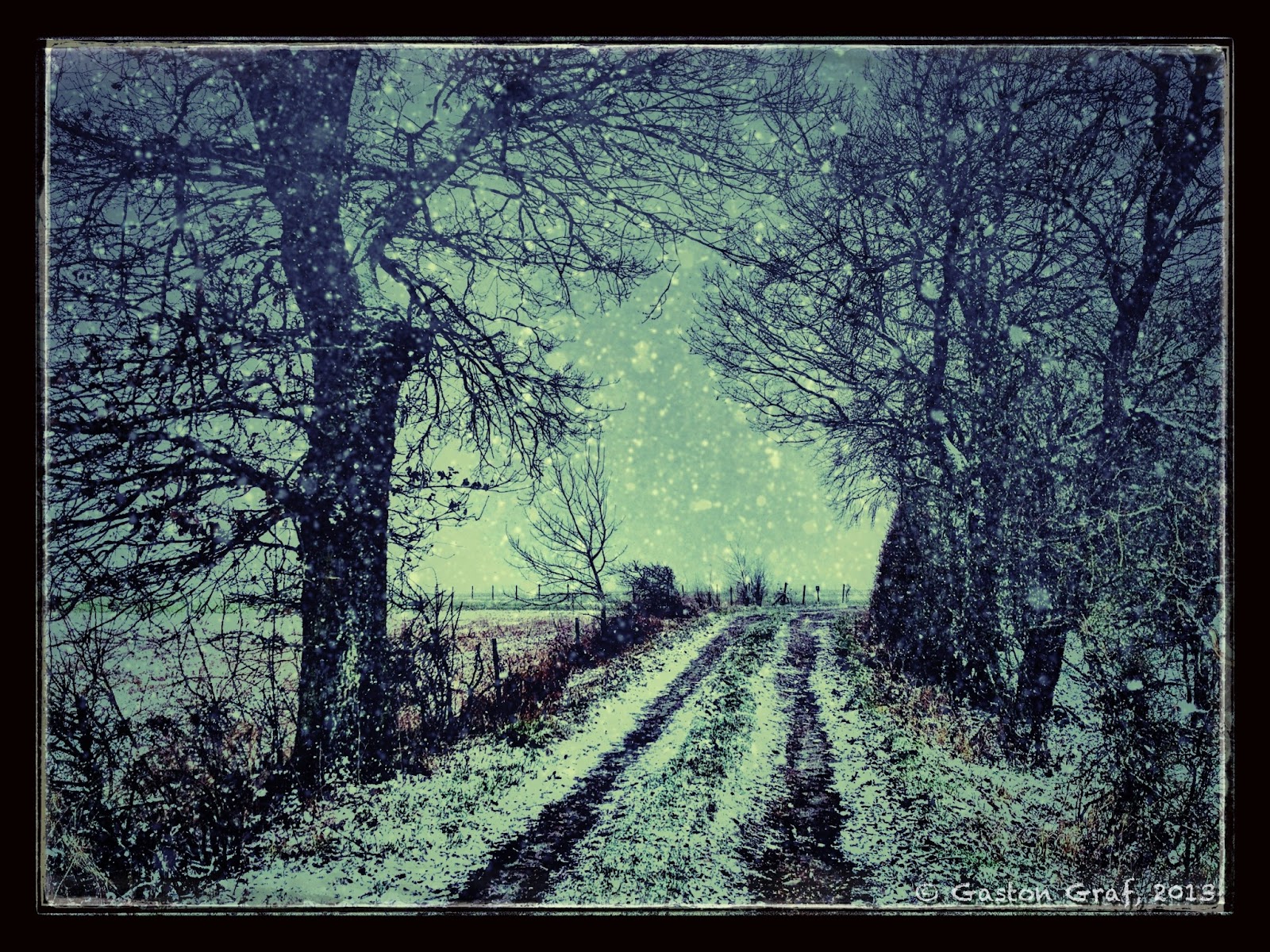
It's snowing again!


Camera App: PureShot

Additional apps used for post processing:
SnapSeed
TouchRetouchHD
SnowDazeHD 
Blender
A+Signature


Four days ago it started snowing again as I went out for a walk with our dog. It was snowing for about 24 hours, causing chaos on the roads again. I believed Winter was finally fading away but I was wrong. Winter was striking back at it's worst. 3-8" of snow was enough to raise hell again in Europe. Especially in northern France and Germany many traffic accidents happened, people got injured, people died.... I took the photo for this picture as snow had just started to fall again. Buddy, our dog, loves snow! It's a nice region where we live. From our house it's only a 10min walk to get into the woods. After snowfall finally stopped, the temperatures dropped down to as cold as -17°C (1.4°F) at night. Now Buddy loves it to run around like mad in the meadows, snapping at the snow and rolling in it. So at least some dogs are happy about the snow. I'm not! I hate snow because it makes roads dangerous and prevents me from riding my bike...

I edited the original PureShot photo with SnapSeed, TouchRetouchHD, SnowDazeHD and Blender. The true snow flakes in the photo turned out black in the center of the picture so I removed them with Touch Retouch. Then I added artificial snow in SnowDazeHD. SnowDaze is one of the brilliant apps made by JixiPix. All of their art apps are highly recommended. 


This is the original PureShot photo, a little underexposed because I could only point and shoot as there was a  crazy dog on the other end of the leach that I had to hold. I like the photo nevertheless because it shows the natural light of that moment quite well. 


This was the stage saved in SnapSeed after applying "Ambience" and "Structure" filters. For "Ambience", tap on "Tune Image", touch the screen so the menu appears, and move your finger up to activate "Ambience". I applied the filter at 100%. For "Structure", go to "Details", and choose "Structure" from the menu. You must be careful with this because it will make a noisy picture even noisier but if there's no noise you can usually pull the slider to 100%. "Ambience" in combination with "Details" and/or "Drama" gives a better HDR effect than most HDR apps can do. Before I decided to use SnapSeed for it I also tried iCameraHDR, ProHDR and even Mobile HDR, but none of the results looked as good as the result from SnapSeed did. What is important in this picture are the dark snowflakes. Like an HDR effect enhances noise it also enhances small details but in this case the natural snowflakes didn't look good so I decided to load the picture in TouchRetouchHD to remove them from the center, where they were most visible.


This is the result after removing the snowflakes in TouchRetouchHD. It as a simple task to mask them off with the brush tool.


With the natural snowflakes now gone I was ready to add artificial snowflakes in SnowDazeHD. I created two versions with identical settings with the exception of the snow effect where I used two different settings. Then I was blending both versions in Blender to mix the snowflakes. Settings was Normal blending mode with slider to 65% to let some snowflakes appear a bit more faded than the other which gave the effect a more natural look.


After the snow was added I re-opened the picture in SnapSeed to play around with it. This is a black and white version whee I applied a red filter. I tried other filters too indeed but the red filter looked best. In then I was most happy with vintage effect #9 plus frame #19. If you tap the crossed arrows on a chosen frame, the frame changes. That's a clever way to include more variations for a single frame design. The same applies to any effect where the crossed arrows appear. I did two versions with frame #19 to blend them in Blender because I wanted a more even frame. Blending settings was normal blending mode 50/50 = slider in the middle.


This is the first result from Blender after blending both frame versions to obtain a more even frame.

To create a very unique frame for my picture I flattened my layers by touching and holding my finger in the center of the screen in Blender until the menu appeared to chose the "flatten" option from. The flattened picture then appears down left in Blender. I opened the SnapSeed version with the retro effect but without frame on the right side. Now I painted the mask to let the outer part of the unframed picture shine through the black frame. After applying the mask I adjusted the level of transparency of the black frame by pulling the slider to 65%. Copyright watermark was added in A+Signature.


The finished picture.

--------------------------------------------------------------------------

Thursday, March 14, 2013

The Leaning Tower...


Camera App:
6x7 (for the main picture)
Hipstamatic + Jane lens + C-Type film (for the Hipstamatic print)
                   

Additional Apps used for post processing:
SnapSeed
iCameraHDR
Pixlr Express+
Blender
TitleFX
A+Signature

This is the redneck edition of that famous Leaning Tower, but unlike it's famous brother from Pisa in Italy, this one is located in a tiny village in Luxembourg, where I live. It's a silo. I live in this place now since 19 years and I always wanted to photograph that leaning silo because I believed one day it will collapse, but still it's standing. However, I don't know since when it is standing that way and nobody can say if it will survive the next thunderstorm, or not.
The original photo was made with jag.gr's brilliant app 6x7. I worked it into this b/w picture with SnapSeed, iCameraHDR and Blender. The frame was added in Pixlr Express+ and the copyright watermark was added in TitleFX, which is a new app made by the same team that made already PhotoToaster.
TitleFX is a really cool app to add effects to your letters but it lacks a bit of the comfort A+Signature provides. For instance, in A+Signature you can save your own creations in a catalog but in TitleFX you can't so you'll have to type in your copyright info every time you load a photo. If you want to add the same text to multiple photos it's best to copy it after typing it in the first time and paste it into the other photos.


The Hipstamatic edition was also pimped a bit in SnapSeed. SnapSeed is a must have app if you want to get more out of your photos.

---------------------------------------------------------------------


Sunday, March 10, 2013

On the road again!


Camera App: PureShot

Additional Apps used for post processing:
FrontView: to correct lens distortion.
SnapSeed: to work my photo into a retro style picture.
Blender:: to restore the original size of the picture. After correcting lens distortion I cropped the picture back to it's regular format in SnapSeed. After editing was done I loaded the original photo in Blender on the left side and the edited but cropped version on the right side. Then I pulled the slider to the full right in normal blend mode and I saved my picture. This is a great trick to restore the iPhone's native resolution even if an app doesn't save in maximal resolution or if you had to crop your picture, as in my case.
A+Signature: for the copyright watermark.

Finally, on February the 17th the roads had been dry again and the snow was gone. I felt so happy to ride again! Winter is the hardest time for every biker. All you can do is caressing your bike, doing maintenance and cleaning work while listening to cool Heavy Metal music in your garage, waiting for the white shit called snow to melt away. I HATE snow! Snow belongs to the North and South poles, to Greenland and Alaska, or to the mountains, but it doesn't belong onto roads which it makes dangerous to everybody's life.

________________________________________

Friday, February 22, 2013

Hoka Hey! Airbrushing my Nolan N90 helmet...


Camera App: PureShot

Apps used for post processing:
Photo Toaster - for the vignetting
Pilxr Express + - for the film frame
MergeImagePro - for the collage.
A+Signature - for the copyright watermark

February the 10th I finally finished the paint job on my motorbike helmet, which I did with my new Badger Renegade Krome airbrush, and my self-build airbrush compressor. You can see a video of it on my YouTube channel: http://youtu.be/CbidkEsd1Co

I painted my helmet silver Aluminium first. Then I applied a liquid mask on several places on edges and everywhere else where I wanted to have paint realistically chipped off. The liquid mask that I used is called "Maskol". It's from Humbrol, a brand famous among modelers for it's great enamel paints. Maskol rubberizes in contact with air and after the paint job is done you can either rub or pull it off. That's what I did.

The red hand painted "A" stands for Anarchy. Now, before you judge me wrong, please read this first: http://en.wikipedia.org/wiki/Anarchy

"Hoky Hey" is the battle cry of the Sioux Indians and nowadays the name of a Harley race in the USA. It translates as "today is a good day to die".

Number 27... because my beloved wife Fanny was born on a 27th.

Two stars the left side of my chin part for our two daughters.

"Fanny" on the left side, because it's my wife's name, signed by herself.

"FXDF" because it's the tech code of my Harley Davidson Fat Bob.

Nolan is great! The helmet was easily disassembled and re-assembled. And working with the Badger Renegade Krome airbrush is big fun!

----------------------------------------------------

Sunday, October 21, 2012

Vintage Toy


Camera App used: 645pro

Additional apps used for post processing:
Snapseed - for a little drama effect with de-saturation.
Portrait HD - JixiPix new app is meant to create beautifully painted portraits, but it's also well suited for any other kind of picture. I had no portrait picture at hand so I tested it on this one.
Blender - to blend the Snapseed version with the Portrait version. Reason was, I wanted to restore some detail on the camera lens which had been lost due to the painting effect. So I erased that part from the Portrait layer and lend it with the Snapseed layer at 88% in normal blending mode. I chose 88% because I wanted to keep part of the canvas texture still shining through on the lens.
Snapseed again - to add a little bit of drama again as well as some fine tuning of light and colors.
PhotoToaster - for the frame
A+Signature - for the copyright watermark.

A few days ago I was finally holding my latest toy in my hands, a genuine Kodak Retina IIIc vintage rage finder camera from the early 1950s that I auctioned on eBay. It came with its original manual as well as with its Certificate of Import and Ownership. Doing a little research I found out it must be a pre-1956 build after it's serial number. The camera is is great condition. The body shows only little traces of wear, all mechanical parts work smoothly and the selenium light meter reacts vividly to light changes. Today I rode out on my bike to do some first shots with the camera. Now I'm curious to bring the film to the photo store for development.
The camera is all mechanical and that's great! It's massive metal body feels great in my hands.

Below is another photo that I took with the 645pro. It's unedited. 


Looks like I'm on my best way to become an addicted vintage camera collector....

~~~~~~~~~~~~~~~~~~~~~~~~~~~~~~~~~~~~~~~~~~~~~~


Saturday, October 6, 2012

How to: correct the iPhone lens distortion...


Camera App: 645pro with F4 b/w film and 645 format.
Location: Luxembourg Main Station, the new sidearm with the modern glass roof in front of the old station building. I took this photo late in the evening, as the station was deserted.

Additional apps used for post processing:
Frontview: to correct the lens distortion. The photos below show you how I did it.
Photo fx Ultra: for cropping and contrast.
PhotoForge2: for a slight re-sharpening.
Pixlromatic: for the frame.
A+Signature: for the copytight watermarks.


This is the original photo as taken with the 645pro. You can see clearly that even if you align one side to the camera grid (left) the lines on the other side are oblique. To correct this I used a neat little app called "Frontview".


This is the Frontview screen after loading my picture....


The first reference point is set....


Second reference point top left...


Third reference point down right....


Fourth reference point set top right. Note that the points follow the lines that shall be straight after processing.


Now tap the arrow to process the picture...


Done!

After this operation completed, I saved my picture and I opened it in Photo fx Ultra for cropping and enhancing. Then I opened the newly saved version in PhotoForge2 for a slight re-sharpening, added the frame in Pixlromatic and the copyright watermark in A+Signature.

I hate it when I photograph a building and some lines appear oblique, no matter what I do. The happier I was as I discovered "Frontview". You cannot only take photos with it and correct them, you can also load photos made with other apps to be corrected.

~~~~~~~~~~~~~~~~~~~~~~~~~~~~~~~~~~~~~~~~


Wednesday, August 29, 2012

Doing HDRs with the 645pro (beta)


Camera App: 645pro beta

Other Apps used for post processing:
Mobile HDR - to create a HDR picture from 3 files. Most iOS HDR apps use only 2 files, one overexposed and one underexposed. Mobile HDR aims at creating HDR pictures from your bracket shots made with a DSLR. Because the 645pro currently offers the best picture quality available on the iPhone I wanted to see if Mobile HDR can be useful for photos made with the iPhone too. The answer is YES it can! But to create the files necessary for the HDR picture one must use some tricks because the 645pro offers no bracket mode shooting. So I did the following:
1) I used the 645pro film with the richest colors, which is the FC5 film.
2) I used the Neutral Density #1 filter with 100% efficiency. Currently that filter is only available in the actual beta version of the 645pro but that version is to be released soon. It runs rock stable and comes with a lot of improvements. So if you don't already have the 645pro on your iPhone I recommend you buying it. It's definitely the best camera app available, and it's a pleasure to work with it. 
The 645pro saves your photos in TIFF format as well as in JPG formt. The TIFFs are the RAW files, unprocessed, no film effects, no filters. Development of RAW photos shot with a DSLR is usually done in a so called "RAW converter" but no such app exists for the iOS devices so development is done in the 645pro itself, that's why it's called a dRAW file - a developed RAW file. The JPG file (of the same photo) is the photo with the configured effects applied, such as films and filters used.
3) In case of the old Diesel engine (above) I also created a black and white version in MonoPhix HD as well as an overexposed version in Laminar.
4) To create the HDR picture in Mobile HDR I used the black and white version created in MonoPhix HD, the JPG version from 645pro and the overexposed version made in Laminar. To create the overexposed picture I simply adjusted its curve by pulling it a bit outwards on a spot set in the middle of the line.

Here you see the original photos and the finished HDR picture

Screenshot from Laminar showing the adjusted curve 
to create an overexposed photo.


The black and white picture created from the TIFF file
using MonoPhix HD.


After importing the files into Mobile HDR the processing
 screen looked like this.


Here's yet another HDR picture created in a similar way than the picture on top of the page. In this case I created an underexposed version of the TIFF file to use with the set of 3 photos in Mobile HDR. Then I created a black and white version from the HDR picture in MonoPhix HD. I also tried Snapseed but I liked the result from MonoPhix HD more. Then I was opening the color HDR and the b/w HDR in Blender. The color version on the left side - the b/w version on the right side. Blending mode was "normal", with the slider set 25% to the left. This enhanced the colors and de-saturated the picture a bit at the same time.

As usual, a copyright watermark was added in A+Signature.

If you got questions please feel free to ask. You may also find me on Facebook. Just search for "quaffii" or "Gaston Graf".
~~~~~~~~~~~~~~~~~~~~~~~~~~~~~~~~~~~~~~~~~~~~~~~~~~~~~~~~~~


Monday, August 6, 2012

Summertime...


Camera Apps used: 645pro, BracketMode and Hipstamatic with Jane lens + Ina's 1982 film

Additional Apps used for post processing:

And now I'm in trouble, cause I don't remember all the steps I took to create the pictures on this page, except for the Hipstamatic shots which are left unprocessed. For the rest there was:
iPhoto - for local corrections. I love iPhoto for that feature!
Photo fx Ultra - for color corrections, fog effect and other.
Blender - to blend the different versions to obtain different results, as usual. For instance, I added the frame in Camera Awesome but blended the result with the previous version to reduce the frame effect by 50% because I found it too strong.
Snapseed - very useful for the detail functions, like "structure" which is about the same as the pseudo-HDR function of other apps is. I did two versions, one using SimplyHDR and one with the "structure" function in Snapseed and the outcome was about the same. Also Snapseed is great for creating b/w pictures. The b/w version of the above picture had been created using Snapseed with neutral filter but 25% of grain setting.
Pixlromatic - for various retro filters which I mixed in Blender. Don't remember what combination I kept in the end, I'm sorry.
LensFlareHD - to enhance the sunlight reflections in the chrome on the headlights, the fuel level indicator cap on the gas tank and on top of the rear view mirror. I did not add it to the reflection on the handle bar close to the risers and left it as it is. To place such light reflections precisely, move them in bigger size with two fingers to the destination, then use the controls panel to adjust size, brightness and rotation. After saving your picture, LensFlareHD reduces it a bit from 3264x2448 to 3072x2304 but you can easily get your original resolution back. Load any photo that has original size on the left side in Blender, then load the version you created with LensFlareHD on the right side. Pull the slider all to the right in "normal" blend mode and save your picture. If you check it with apps such as ExifWizardPro or the free PhotoSize you will see that it is back to original resolution.
ProHDR - I did some photo sets with BracketMode but in the end I disliked the outcome of the HDR picture as I put them together in ProHDR so I used only the overexposed version for this photo.
A+Signature - for the usual copyright watermarks. I also use it to mark my Hipstamatic shots with lens/film combo so I don't need to repeat this again and again when posting the photos to various Facebook groups.

The day before yesterday I felt for making some new pics of my bike, especially because it now has the Metzler Me880 Marathon tires mounted and because it had a different derby cover for a while. Usually it wears the Willie G. Skull derby cover but mine had been scratched so I wanted a new one but that one needed some time to arrive so I used the cover with the big bad Nr.1 on it. It's nice, but I like the skull cover much more. Yesterday I finally changed the cover and I made some more pics.

This is the b/w version I created using Snapseed. 
No filter but 25% of grain. I like that!


The photo from yesterday, with the Willie G. Skull derby cover. Photo made with the 645pro camera app. This time I was finally able to snap about a dozen shots before the damn app crashed again. I guess it's having a memory problem. If you close all apps that ran in the background, then reboot your iPhone the 645pro runs fine, until a given moment when it crashes again. And that's when the memory is filled up. I hope the developers will get that problem solved soon.

 Hipstamatic photo with the Bad Nr.1 derby cover

 Hipstamatic photo with the Willie G. Skull derby cover

Hipstamatic photo of the Willie G. Skull derby cover in detail.

~~~~~~~~~~~~~~~~~~~~~~~~~~~~~~~~~~~~~~~~~~~~~~